> ## Documentation Index
> Fetch the complete documentation index at: https://devs.surferseo.com/llms.txt
> Use this file to discover all available pages before exploring further.
# Authentication
> Choose the organization your connection uses and manage sign-in, account changes, and server settings.
The only credential is your Surfer account. Surfer MCP signs every client in with OAuth 2.1 and accepts no API key, header, or URL token, as [Server details](/mcp/authentication#server-details) shows. The setup steps for each client are on [Quickstart](/mcp/quickstart).
## How sign-in works
Your client opens a browser window, you sign in to Surfer and choose an organization, and the client finishes the connection. In order:
1. When you add `https://mcp.surferseo.com/mcp` to a client, the client discovers Surfer's authorization server, registers itself, and opens a browser window.
2. If you are already signed in to app.surferseo.com in that browser, Surfer uses that account. Otherwise Surfer shows its normal login page first.
3. Surfer's consent page opens, headed with the client's name and "is requesting access to your Surfer account".
4. You choose an organization and select **Authorize**.
5. The browser returns to the client, which finishes the connection.
A pending sign-in stays valid for a short time. If the consent page shows
"Authorization request expired", or sign-in fails another way,
[Troubleshooting](/mcp/troubleshooting#authorization-request-expired-or-something-went-wrong)
has the fix.
Where the connection comes from depends on the client. The browser sign-in happens on your device either way.
* Claude web, desktop, and mobile reach Surfer from Anthropic's infrastructure rather than from your device.
* ChatGPT web reaches Surfer from OpenAI's infrastructure rather than from your device.
* Direct MCP connections configured in Claude Code, Cursor, VS Code, or the local ChatGPT desktop and Codex clients run from their host machine.
## What you approve
The consent page asks for one decision: the organization this connection works in.
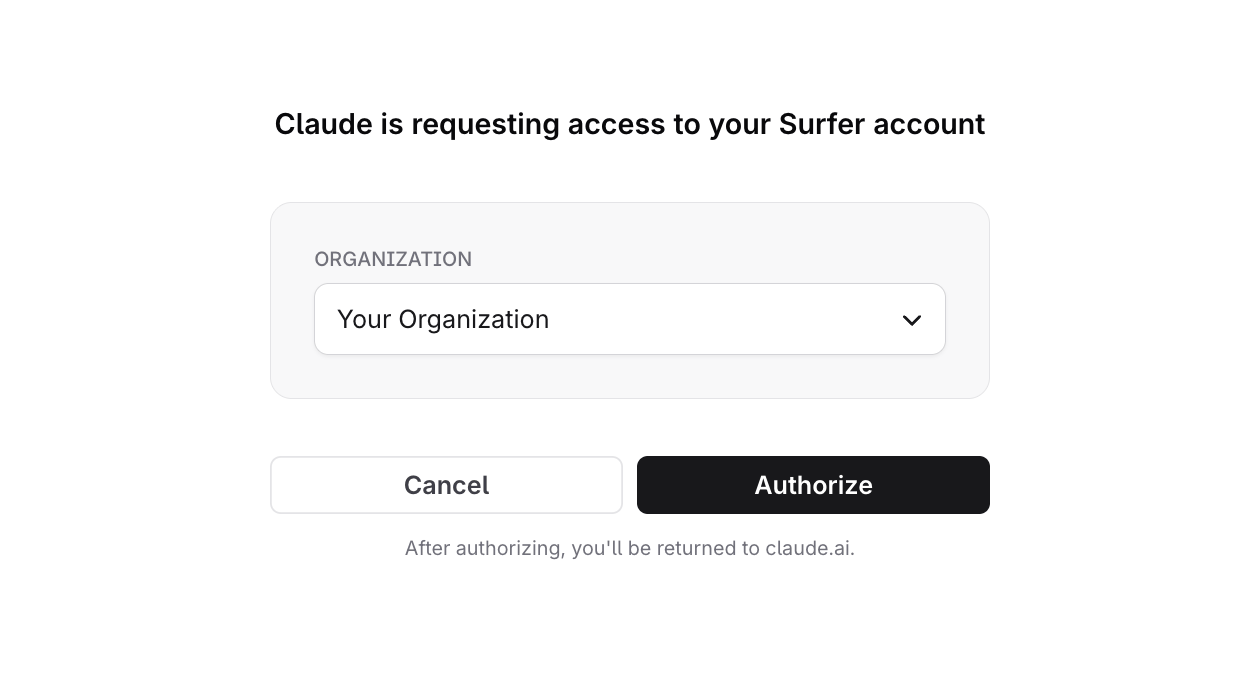 * Organizations you own are listed first.
* An organization whose plan does not include MCP appears disabled, with "Plan upgrade required" or "Not eligible for MCP" under its name.
* When exactly one organization is eligible, Surfer preselects it.
* When none is eligible, the page shows "MCP is not available for your organizations" with the reason under each organization and only a Cancel button.
[Credits and limits](/mcp/credits-and-limits) lists the plans that include MCP.
One connection serves one organization; [What connecting grants](/mcp/security#what-connecting-grants) describes what the client can do inside it. The permissions fall into four groups:
| Group | What the connection can do |
| - | - |
| Read | Read workspaces, brand knowledge, recommendations, Content Editors, content, AI Articles, SEO Guidelines and AI Search guidelines, scores, outlines, templates, voices, skill playbooks, and AI Tracker reports. |
| Write | Activate workspaces, update brand knowledge, update existing Content Editors, their content, and their SEO Guidelines, and create and update content templates and custom voices. |
| Generate | Create workspaces and Content Editors, open recommendation Content Editors, and run generation jobs (AI Articles, outlines, Auto-Optimize). Four of these tools consume credits; see [Credits and limits](/mcp/credits-and-limits). |
| Delete | Delete content templates and custom voices. |
All four groups are granted at consent today; there is no per-group choice.
[Security and admin](/mcp/security) covers which tools overwrite or delete data and how clients ask for confirmation before running them.
## How long a connection lasts
Sign-in is periodic. Your client refreshes the connection in the background while you work. When the connection expires, the client asks you to sign in again and you pass through the same consent page.
Some clients share a connection:
* Claude web, desktop, and mobile share the connector stored on your claude.ai account. Claude Code can use it when you sign in with the same account.
* ChatGPT desktop, Codex CLI, and the Codex IDE extension share MCP configuration on the same host.
* Other client configurations keep separate connections. Signing in from Claude does not sign in Cursor.
If your organization's plan stops including MCP, the connection is not revoked. Tool calls fail instead; [Troubleshooting](/mcp/troubleshooting#calling-tools) quotes the error.
## Disconnect or switch accounts
Surfer has no screen that lists connected clients and no disconnect button. Remove the server in your client. The connection expires on its own afterwards.
| Client | How to disconnect |
| - | - |
| Claude | Go to **Customize → Connectors** (Team and Enterprise owners: **Organization settings → Connectors**), open the connector's three-dot menu, and select Remove. |
| Claude Code | Run `claude mcp logout surfer` to clear the sign-in, or choose Clear authentication for the server in `/mcp`. Run `claude mcp remove surfer` to delete the server entry. |
| ChatGPT web | OpenAI does not document removing a developer-mode plugin. The plugin's page at [chatgpt.com/plugins](https://chatgpt.com/plugins) lets you turn its tools off. |
| Cursor | Remove the server from **Customize**, or delete its entry from `~/.cursor/mcp.json` or `.cursor/mcp.json`. |
| VS Code | Sign out of Surfer from the **Accounts** menu. To remove the server, right-click it under **MCP SERVERS - INSTALLED** in the Extensions view and uninstall it, or delete its entry from `mcp.json`. |
| ChatGPT desktop and Codex | Run `codex mcp logout surfer` to clear the sign-in and `codex mcp remove surfer` to delete the server entry. |
Replace `surfer` with the name you gave the server when you added it.
To connect as a different Surfer account:
1. Remove the server in the client.
2. In the browser your client uses for sign-in, clear the cookies for mcp.surferseo.com and app.surferseo.com, or do the next step in a private window. Surfer's authorization server keeps its own sign-in session, so signing out of app.surferseo.com alone is not enough.
3. Add the server again and sign in with the other account.
A connection cannot switch organizations in place. To work in a different organization:
1. Remove the server.
2. Add it again.
3. Choose the other organization on the consent page.
## Who can connect
Anyone with a Surfer account in an organization whose plan includes MCP can connect with their own account. Surfer needs no approval from an organization owner.
Creating and activating a workspace go further: both need an organization owner or admin. Permission checks apply to you rather than to the client; see [What connecting grants](/mcp/security#what-connecting-grants).
On Claude Team and Enterprise an Owner adds the connector for the organization; members still sign in with their own Surfer account (see the [Claude setup](/mcp/connect/claude#team-and-enterprise)).
## Server details
Use this address when adding Surfer to an MCP client:
| Setting | Value |
| - | - |
| Server URL | `https://mcp.surferseo.com/mcp` |
| Transport | Streamable HTTP over POST. Choose Streamable HTTP if your client asks for a transport. |
| Authentication | OAuth with automatic client registration and browser sign-in. |
| Credentials | Your Surfer account. Leave API keys, custom headers, and client ID fields empty. |
Opening the URL directly in a browser does not test an MCP connection. See [Troubleshooting](/mcp/troubleshooting#a-connected-client-shows-405-method-not-allowed) for clients that fall back to GET or SSE.
## What the server supports
For client authors and anyone checking compatibility, this is what the server advertises and what it accepts. Read the exact endpoint URLs, grant types, and scope values from the metadata documents rather than from this page. The server URL and transport are on [Server details](/mcp/authentication#server-details).
| Item | Value |
| - | - |
| Protocol | OAuth 2.1 authorization code flow with PKCE (SHA-256 code challenges) |
| Authorization server metadata | [`https://mcp.surferseo.com/.well-known/oauth-authorization-server`](https://mcp.surferseo.com/.well-known/oauth-authorization-server) |
| Protected resource metadata | [`https://mcp.surferseo.com/.well-known/oauth-protected-resource/mcp`](https://mcp.surferseo.com/.well-known/oauth-protected-resource/mcp) |
| Endpoints | Authorization, token, registration, token revocation, key set, and user info, each listed in the authorization server metadata |
| Client registration | Dynamic Client Registration with no initial access token. A client that registers with the token endpoint auth method `none` gets no client secret; a client that omits the method is registered with `client_secret_basic` and receives a secret. `client_secret_post` is accepted too. |
| Grant types | Authorization code and refresh token |
| Scopes advertised | The OpenID sign-in scope only. Surfer's own permission groups are granted without being requested. |
| Resource indicator | `https://mcp.surferseo.com/mcp`, the only value the server accepts |
This documentation is built and hosted on [Mintlify](https://mintlify.com), a developer documentation platform.
* Organizations you own are listed first.
* An organization whose plan does not include MCP appears disabled, with "Plan upgrade required" or "Not eligible for MCP" under its name.
* When exactly one organization is eligible, Surfer preselects it.
* When none is eligible, the page shows "MCP is not available for your organizations" with the reason under each organization and only a Cancel button.
[Credits and limits](/mcp/credits-and-limits) lists the plans that include MCP.
One connection serves one organization; [What connecting grants](/mcp/security#what-connecting-grants) describes what the client can do inside it. The permissions fall into four groups:
| Group | What the connection can do |
| - | - |
| Read | Read workspaces, brand knowledge, recommendations, Content Editors, content, AI Articles, SEO Guidelines and AI Search guidelines, scores, outlines, templates, voices, skill playbooks, and AI Tracker reports. |
| Write | Activate workspaces, update brand knowledge, update existing Content Editors, their content, and their SEO Guidelines, and create and update content templates and custom voices. |
| Generate | Create workspaces and Content Editors, open recommendation Content Editors, and run generation jobs (AI Articles, outlines, Auto-Optimize). Four of these tools consume credits; see [Credits and limits](/mcp/credits-and-limits). |
| Delete | Delete content templates and custom voices. |
All four groups are granted at consent today; there is no per-group choice.
[Security and admin](/mcp/security) covers which tools overwrite or delete data and how clients ask for confirmation before running them.
## How long a connection lasts
Sign-in is periodic. Your client refreshes the connection in the background while you work. When the connection expires, the client asks you to sign in again and you pass through the same consent page.
Some clients share a connection:
* Claude web, desktop, and mobile share the connector stored on your claude.ai account. Claude Code can use it when you sign in with the same account.
* ChatGPT desktop, Codex CLI, and the Codex IDE extension share MCP configuration on the same host.
* Other client configurations keep separate connections. Signing in from Claude does not sign in Cursor.
If your organization's plan stops including MCP, the connection is not revoked. Tool calls fail instead; [Troubleshooting](/mcp/troubleshooting#calling-tools) quotes the error.
## Disconnect or switch accounts
Surfer has no screen that lists connected clients and no disconnect button. Remove the server in your client. The connection expires on its own afterwards.
| Client | How to disconnect |
| - | - |
| Claude | Go to **Customize → Connectors** (Team and Enterprise owners: **Organization settings → Connectors**), open the connector's three-dot menu, and select Remove. |
| Claude Code | Run `claude mcp logout surfer` to clear the sign-in, or choose Clear authentication for the server in `/mcp`. Run `claude mcp remove surfer` to delete the server entry. |
| ChatGPT web | OpenAI does not document removing a developer-mode plugin. The plugin's page at [chatgpt.com/plugins](https://chatgpt.com/plugins) lets you turn its tools off. |
| Cursor | Remove the server from **Customize**, or delete its entry from `~/.cursor/mcp.json` or `.cursor/mcp.json`. |
| VS Code | Sign out of Surfer from the **Accounts** menu. To remove the server, right-click it under **MCP SERVERS - INSTALLED** in the Extensions view and uninstall it, or delete its entry from `mcp.json`. |
| ChatGPT desktop and Codex | Run `codex mcp logout surfer` to clear the sign-in and `codex mcp remove surfer` to delete the server entry. |
Replace `surfer` with the name you gave the server when you added it.
To connect as a different Surfer account:
1. Remove the server in the client.
2. In the browser your client uses for sign-in, clear the cookies for mcp.surferseo.com and app.surferseo.com, or do the next step in a private window. Surfer's authorization server keeps its own sign-in session, so signing out of app.surferseo.com alone is not enough.
3. Add the server again and sign in with the other account.
A connection cannot switch organizations in place. To work in a different organization:
1. Remove the server.
2. Add it again.
3. Choose the other organization on the consent page.
## Who can connect
Anyone with a Surfer account in an organization whose plan includes MCP can connect with their own account. Surfer needs no approval from an organization owner.
Creating and activating a workspace go further: both need an organization owner or admin. Permission checks apply to you rather than to the client; see [What connecting grants](/mcp/security#what-connecting-grants).
On Claude Team and Enterprise an Owner adds the connector for the organization; members still sign in with their own Surfer account (see the [Claude setup](/mcp/connect/claude#team-and-enterprise)).
## Server details
Use this address when adding Surfer to an MCP client:
| Setting | Value |
| - | - |
| Server URL | `https://mcp.surferseo.com/mcp` |
| Transport | Streamable HTTP over POST. Choose Streamable HTTP if your client asks for a transport. |
| Authentication | OAuth with automatic client registration and browser sign-in. |
| Credentials | Your Surfer account. Leave API keys, custom headers, and client ID fields empty. |
Opening the URL directly in a browser does not test an MCP connection. See [Troubleshooting](/mcp/troubleshooting#a-connected-client-shows-405-method-not-allowed) for clients that fall back to GET or SSE.
## What the server supports
For client authors and anyone checking compatibility, this is what the server advertises and what it accepts. Read the exact endpoint URLs, grant types, and scope values from the metadata documents rather than from this page. The server URL and transport are on [Server details](/mcp/authentication#server-details).
| Item | Value |
| - | - |
| Protocol | OAuth 2.1 authorization code flow with PKCE (SHA-256 code challenges) |
| Authorization server metadata | [`https://mcp.surferseo.com/.well-known/oauth-authorization-server`](https://mcp.surferseo.com/.well-known/oauth-authorization-server) |
| Protected resource metadata | [`https://mcp.surferseo.com/.well-known/oauth-protected-resource/mcp`](https://mcp.surferseo.com/.well-known/oauth-protected-resource/mcp) |
| Endpoints | Authorization, token, registration, token revocation, key set, and user info, each listed in the authorization server metadata |
| Client registration | Dynamic Client Registration with no initial access token. A client that registers with the token endpoint auth method `none` gets no client secret; a client that omits the method is registered with `client_secret_basic` and receives a secret. `client_secret_post` is accepted too. |
| Grant types | Authorization code and refresh token |
| Scopes advertised | The OpenID sign-in scope only. Surfer's own permission groups are granted without being requested. |
| Resource indicator | `https://mcp.surferseo.com/mcp`, the only value the server accepts |
This documentation is built and hosted on [Mintlify](https://mintlify.com), a developer documentation platform.