

Who can use the API
API access is included in the Peace of Mind and Enterprise plans and in the API add-on; some older plans include it too. Compare plans on the pricing page. Without access, the API tab reads “API access is not available on your plan” and offers an upgrade instead of a key.Get your API key
Support issues one API key per organization, and only to the organization owner.1
Sign in as the organization owner
Open app.surferseo.com with the owner account
of the organization that needs the key.
2
Open the API tab
Go to MCP & API → API.
3
Open the support form
Select Contact Support on the Get your API key card.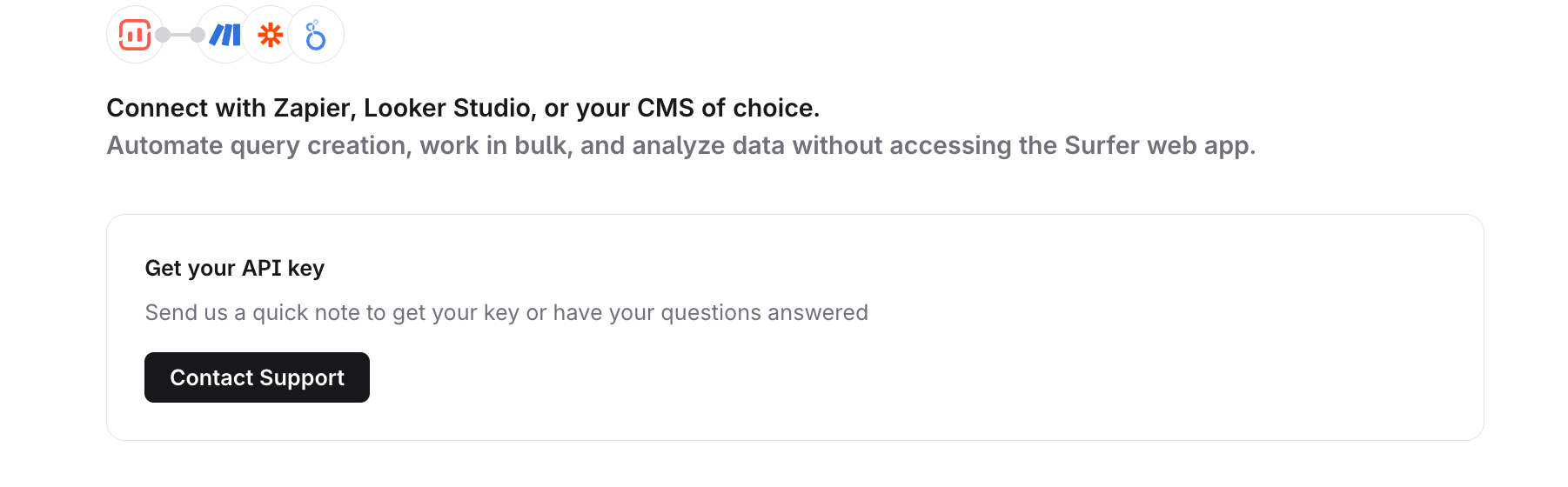
4
Send the request
Send the form that opens. It is prefilled with the message “Hi, I would like to get my API key.”
5
Store the key
When support sends the key, store it where your server code can read it,
for example in an environment variable named
SURFER_API_KEY. Never ship it
in browser code or commit it to a repository.Asking support to reset the key replaces it at once, for every integration
that holds the old one. Use the same Contact Support button when a key is
lost or has leaked, then update every integration together.
Send the key with every request
Send the key in theAPI-KEY header, over HTTPS. The few requests that need no key say so on their reference page; GET /api/v1/locations, which lists the location names other endpoints accept, is one of them.
In a terminal, replace <your key> and run this to list the workspaces your key can reach:
200 with a data list confirms the key works; an empty list is still a success. Each item is a workspace, the brand or site you manage in Surfer, and carries the id that v2 URLs take.
List workspaces has the full response. Requests and responses covers the base URL and the formats every endpoint accepts.
Surfer MCP needs no API key; it signs in with your Surfer account (MCP authentication).
What a key can reach
The key belongs to one organization, and what it reaches differs between the two API versions:- v2 requests act on every workspace in the organization. The workspace is named in the URL path; Requests and responses covers workspace scoping.
- v1 requests act as the organization owner the key was issued to.
When authentication fails
For401, check the header and the key; for 403, check your organization’s access.
Both responses use the v2 error envelope with
reason set to unauthorized or permission_denied; Errors documents the envelope and every other reason.
v1 answers both cases with the plain-text body Access denied., and a v1 403 can also mean your plan lacks the tool behind that endpoint, for example Audit or SERP Analyzer. Migrating from v1 covers the other differences.