

How sign-in works
Your client opens a browser window, you sign in to Surfer and choose an organization, and the client finishes the connection. In order:- When you add
https://mcp.surferseo.com/mcpto a client, the client discovers Surfer’s authorization server, registers itself, and opens a browser window. - If you are already signed in to app.surferseo.com in that browser, Surfer uses that account. Otherwise Surfer shows its normal login page first.
- Surfer’s consent page opens, headed with the client’s name and “is requesting access to your Surfer account”.
- You choose an organization and select Authorize.
- The browser returns to the client, which finishes the connection.
A pending sign-in stays valid for a short time. If the consent page shows
“Authorization request expired”, or sign-in fails another way,
Troubleshooting
has the fix.
- Claude web, desktop, and mobile reach Surfer from Anthropic’s infrastructure rather than from your device.
- ChatGPT web reaches Surfer from OpenAI’s infrastructure rather than from your device.
- Direct MCP connections configured in Claude Code, Cursor, VS Code, or the local ChatGPT desktop and Codex clients run from their host machine.
What you approve
The consent page asks for one decision: the organization this connection works in.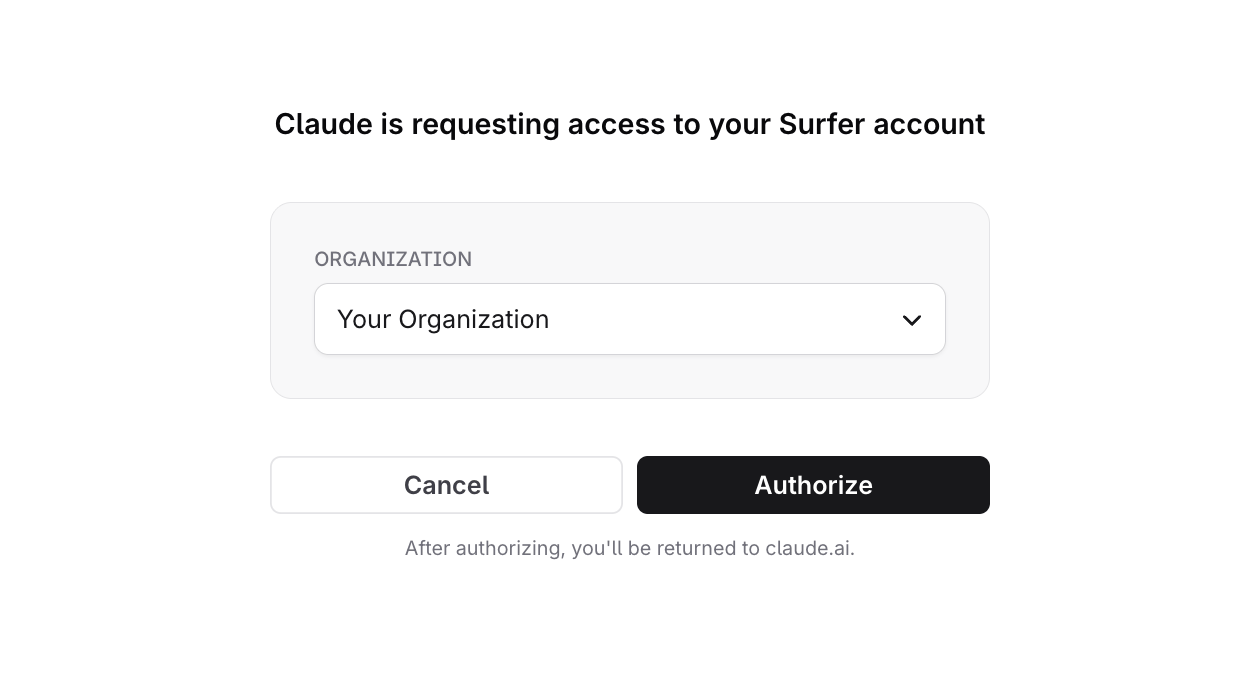
- Organizations you own are listed first.
- An organization whose plan does not include MCP appears disabled, with “Plan upgrade required” or “Not eligible for MCP” under its name.
- When exactly one organization is eligible, Surfer preselects it.
- When none is eligible, the page shows “MCP is not available for your organizations” with the reason under each organization and only a Cancel button.
All four groups are granted at consent today; there is no per-group choice.
How long a connection lasts
Sign-in is periodic. Your client refreshes the connection in the background while you work. When the connection expires, the client asks you to sign in again and you pass through the same consent page. Some clients share a connection:- Claude web, desktop, and mobile share the connector stored on your claude.ai account. Claude Code can use it when you sign in with the same account.
- ChatGPT desktop, Codex CLI, and the Codex IDE extension share MCP configuration on the same host.
- Other client configurations keep separate connections. Signing in from Claude does not sign in Cursor.
Disconnect or switch accounts
Surfer has no screen that lists connected clients and no disconnect button. Remove the server in your client. The connection expires on its own afterwards.
Replace
surfer with the name you gave the server when you added it.
To connect as a different Surfer account:
- Remove the server in the client.
- In the browser your client uses for sign-in, clear the cookies for mcp.surferseo.com and app.surferseo.com, or do the next step in a private window. Surfer’s authorization server keeps its own sign-in session, so signing out of app.surferseo.com alone is not enough.
- Add the server again and sign in with the other account.
- Remove the server.
- Add it again.
- Choose the other organization on the consent page.
Who can connect
Anyone with a Surfer account in an organization whose plan includes MCP can connect with their own account. Surfer needs no approval from an organization owner. Creating and activating a workspace go further: both need an organization owner or admin. Permission checks apply to you rather than to the client; see What connecting grants. On Claude Team and Enterprise an Owner adds the connector for the organization; members still sign in with their own Surfer account (see the Claude setup).Server details
Use this address when adding Surfer to an MCP client:
Opening the URL directly in a browser does not test an MCP connection. See Troubleshooting for clients that fall back to GET or SSE.