

Availability
Any Surfer account can connect Search Console. The features that use the connection keep their own plan requirements.Features that use Search Console data
Search Console data reaches four places in Surfer:- Sites, Surfer’s tools for a whole website: its Performance dashboard, Topical Map (content ideas for the site), and Content Audit (optimization opportunities for the site).
- Internal linking suggestions in the Content Editor, the document Surfer builds around your target keywords.
- The Topic Authority Score in Topic Research, where you explore topics and keywords for a domain. The score rates how much of a topic the domain covers and how well it ranks for it.
- The performance report in Surfer’s WordPress plugin.
Before you start
You need a Google account that has access to the property in Search Console as an owner, full user, or restricted user.
Surfer asks Google for read-only access to Search Console, plus your basic Google profile and email address. Surfer never changes anything in Search Console.
If the site is not in Search Console yet, follow Google’s guides to add a property and verify your site ownership. If someone else owns the property, ask them to add you as a user.
Connect a Google account
Start Google’s sign-in process from Surfer’s settings to connect your account.1
Open the Search Console settings
Go to Settings → Integrations → Search Console.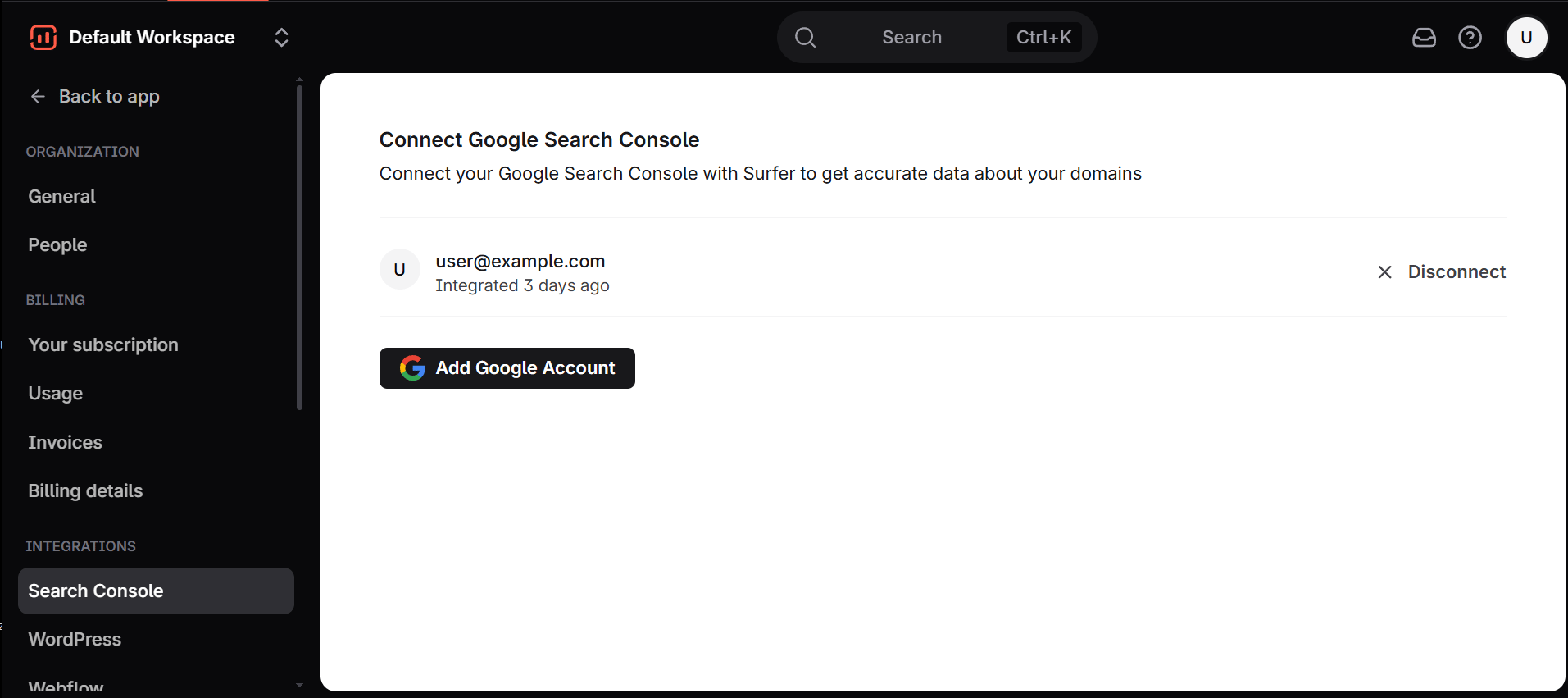
2
Add the account
Select Add Google Account.Google’s sign-in opens in a new window.If nothing opens, allow pop-ups for app.surferseo.com.
3
Choose the account
Pick the Google account that has access to the property.
4
Allow Search Console access
Keep Search Console access selected on Google’s consent screen. If you unselect it, the connection fails (see Troubleshooting).Allow access with it selected.
5
Confirm the account is listed
Check that the account appears in the list with its email address, Integrated, and how long ago you connected it.
Verify that your property appears
The property shows up wherever Surfer asks you to pick one, starting with site setup.- In the sidebar, open SEO → Content Audit.
- Open the list under Select your existing Search Console site.
- Find the property in the list.
- Domains awaiting site setup appear under To configure.
- Domains with completed site setup appear under Your existing Content Audits and Topical Maps.
Several accounts and properties
Connect as many Google accounts as you need.- Surfer lists properties by Google account.
- If only another Google account has access to a property, connect that account too.
- Reconnecting a listed account refreshes access for its existing row.
- Domain properties, marked Domain Property.
- URL-prefix properties. A subfolder property such as
https://example.com/fr/is listed with its path.
www. and any path. That match only lets the plugin connect. The performance report also needs permission for the pages it requests and data for them in Search Console. Without either, the report comes back empty.
A URL-prefix property covers only the addresses that start with its exact prefix. A site connected to a subfolder property sees data for that subfolder only. A Domain property covers every address on the domain:
Remove an account
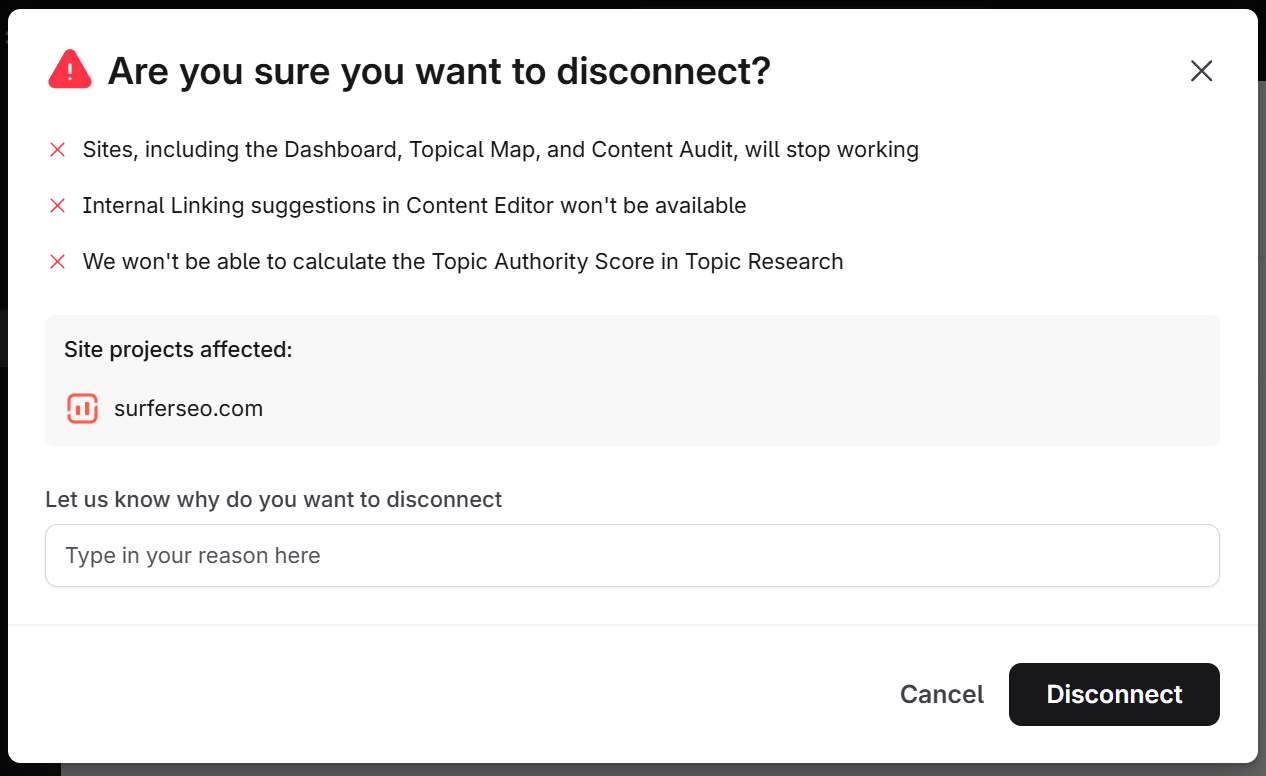
Disconnecting an account stops the features that read its properties. Disconnect appears on accounts you connected yourself. Organization owners and admins see it on every account. The confirmation dialog names Sites, internal linking in the Content Editor, and the Topic Authority Score. Under Site projects affected: it lists each site that uses this account. The WordPress performance report stops as well. Surfer also withdraws its access in your Google account, unless the same Google account is still connected elsewhere in Surfer.- Select Disconnect next to the account.
- Select Disconnect again under Are you sure you want to disconnect?.
Troubleshooting
A missing Google permission is fixed from the Search Console settings page. An expired connection is fixed from the site that reports it.The connection fails with a permission message
The connection fails with a permission message
The connection fails if the Search Console permission is unselected on Google’s consent screen. The settings page shows this message.
Could not finalize Google Search Console connection. Make sure you have granted Search Console data permission. You can check the permissions you have granted on the apps with access to your account page.- Select Add Google Account again.
- Allow Search Console access on Google’s consent screen.
Could not finalize Google Search Console connection. means the sign-in did not complete. Select Add Google Account again. If the message repeats, write to [email protected].A property is missing from the list
A property is missing from the list
Surfer lists a property only when the connected Google account has one of the access levels in Before you start. Either:
- Check the account’s access in Search Console.
- Connect the Google account that has access.
We couldn’t find any domains under this account when the account has no domains to list. Either:- Pick another account there.
- Select Add Google account to connect one.
A property shows little or no data
A property shows little or no data
Google decides what a property reports, and Surfer cannot change it. Google’s About Search Console data lists these limits:
- Collected data is normally available after two to three days.
- A site newly added to Search Console can take up to a week to show data.
- Performance reports omit rare queries to protect user privacy.
Internal links report a problem accessing Search Console data
Internal links report a problem accessing Search Console data
A Content Editor shows
There is a problem with accessing GSC data for this property. when Surfer can no longer read the property with the account it was set up with. Either:- Connect that Google account again from the Search Console settings. The message links there.
- Pick a different account for the property.