

Availability
Everything Keyword Surfer adds to Google results pages is free, unlimited, and needs no Surfer account. The extension’s popup readsUnlimited. Always free.
Install
Keyword Surfer needs Chrome 119 or newer, or another Chromium browser that installs extensions from the Chrome Web Store.1
Open the listing
2
Add it to Chrome
Select Add to Chrome.
3
Confirm
Select Add extension in Chrome’s confirmation dialog.
4
Run a search
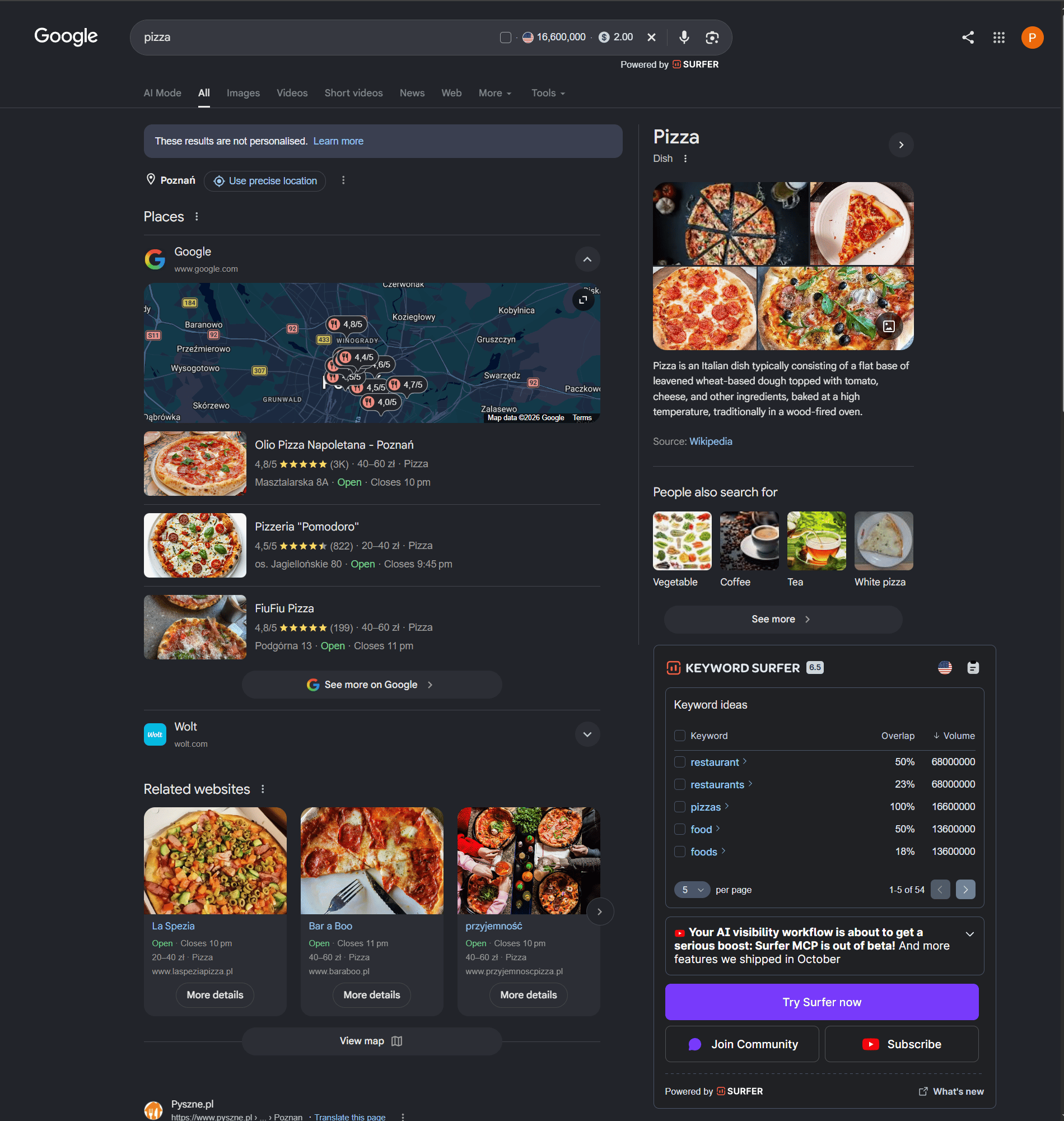
Search Google for anything. The search volume appears next to the search
box. The Keyword Surfer sidebar appears beside the results.
On Google results pages
Keyword Surfer adds four things to a Google web search.- Next to the search box: your query’s estimated monthly search volume and its CPC, the cost per click in Google Ads. A flag marks the country the numbers are for, and CPC reads
N/Awhen there is no figure. - In the sidebar: Keyword ideas, a table of related keywords.
- Under each result: the domain’s estimated monthly traffic, the number of words on the page, and how many times your exact query appears on it.
- Badges on a result: Title changed when Google shows a different title than the page’s own, and SGE when the page is cited in Google’s AI Overview. Hover Title changed to see the original.
Sort by any column. Show 2, 5, 10, or 20 keywords per page.
The numbers are for one country, shown as the flag. Keyword Surfer reads the country from the Google page you are on and keeps your choice for later searches. If your country is not listed, the data shown is for the United States.
To change the country:
- Select the flag in the sidebar header.
- To narrow the list, type in the box above it. The box’s placeholder reads
Search country. - Select a country.
Collect keywords
The Collection keeps the keywords you tick and exports them as a CSV file. It lives in your browser, not in a Surfer account. The box in the Keyword ideas header ticks every keyword on the current page. The box next to the search box ticks your query itself.- Tick the box next to a keyword in Keyword ideas.
- Select the Collection icon in the sidebar header. A badge on it counts the saved keywords.
- Select Download CSV. The file has two columns, Keyword and Search volume.
- Select the trash icon in the table’s header. Its tooltip reads Delete all from Collection.
- Select Delete to confirm.
Settings
The toggle is on after installation. Select the Keyword Surfer icon in Chrome’s toolbar to open Keyword Surfer settings.Limits
Keyword Surfer runs in desktop browsers on Google’s web results, and its numbers are estimates.- Mobile browsers: nothing appears, even in a phone browser that installs extensions.
- Google’s AI Mode and the image, news, video, shopping, and similar result tabs: nothing appears; the extension runs on the web results of Google’s own domains only.
N/Aon a result: the extension’s data service did not return the page’s word count and exact keyword count within about five seconds. The volume and traffic numbers have no such timeout.- Page layouts: the overlay depends on Google’s page structure, so a redesign can hide parts of it until Surfer ships an update.
- Estimates: volumes, CPC, and traffic are estimates from the extension’s own data service, not live figures, so a recent change can be missing.
Troubleshooting
Start with the extension’s settings and a page reload.Nothing appears on a Google results page
Nothing appears on a Google results page
Check, in this order:
- Open Keyword Surfer settings from the toolbar icon.
- Check that Show in Google search results is on.
- Check that you are on the web results tab. Keyword Surfer skips AI Mode, images, news, videos, shopping, and similar tabs.
- Check that Chrome allows JavaScript on google.com. Keyword Surfer skips Google’s no-JavaScript results page.
- If you are in an Incognito window, go to Chrome’s Manage extensions → Keyword Surfer → Details.
- Turn on Allow in incognito.
- Reload the page.
The search volume shows, but a result reads N/A
The search volume shows, but a result reads N/A
The extension’s data service did not return the page’s word count and exact keyword count within about five seconds. Reload the page to try again. If
N/A stays after a reload, the counts for that page are not available, and the extension does not report why.The word count differs from what Surfer's app shows
The word count differs from what Surfer's app shows
Keyword Surfer uses its own data service to count words. Surfer runs a separate analysis for a Content Editor. These methods can produce different word counts for the same page.
The guidelines panel does not show in Google Docs
The guidelines panel does not show in Google Docs
Keyword Surfer does not run in Google Docs. The guidelines panel there comes from Surfer for Google Docs, whose setup page compares the two extensions.