

Availability
The Pro, Peace of Mind, and Enterprise plans and the trial include the integration. Some older plans include it too. If your plan excludes the integration, the panel showsContentful integration is not available on your plan. On an entry without a Content Editor, the message replaces the list of Content Editors. See Plans for the panel’s own plan and subscription messages.
Before you start
Check four things before you install the app:- A Contentful space where you have permission to install apps.
- A Rich Text field on every content type you want Surfer on. The app reads only Rich Text fields, and its configuration screen cannot switch on a content type without one.
- A Surfer account with an active subscription, signed in to the app in the same browser. The Surfer and Contentful accounts do not need to match.
- A browser that lets Surfer use its cookies inside Contentful. Sign in and cookies explains the setting.
Install the app
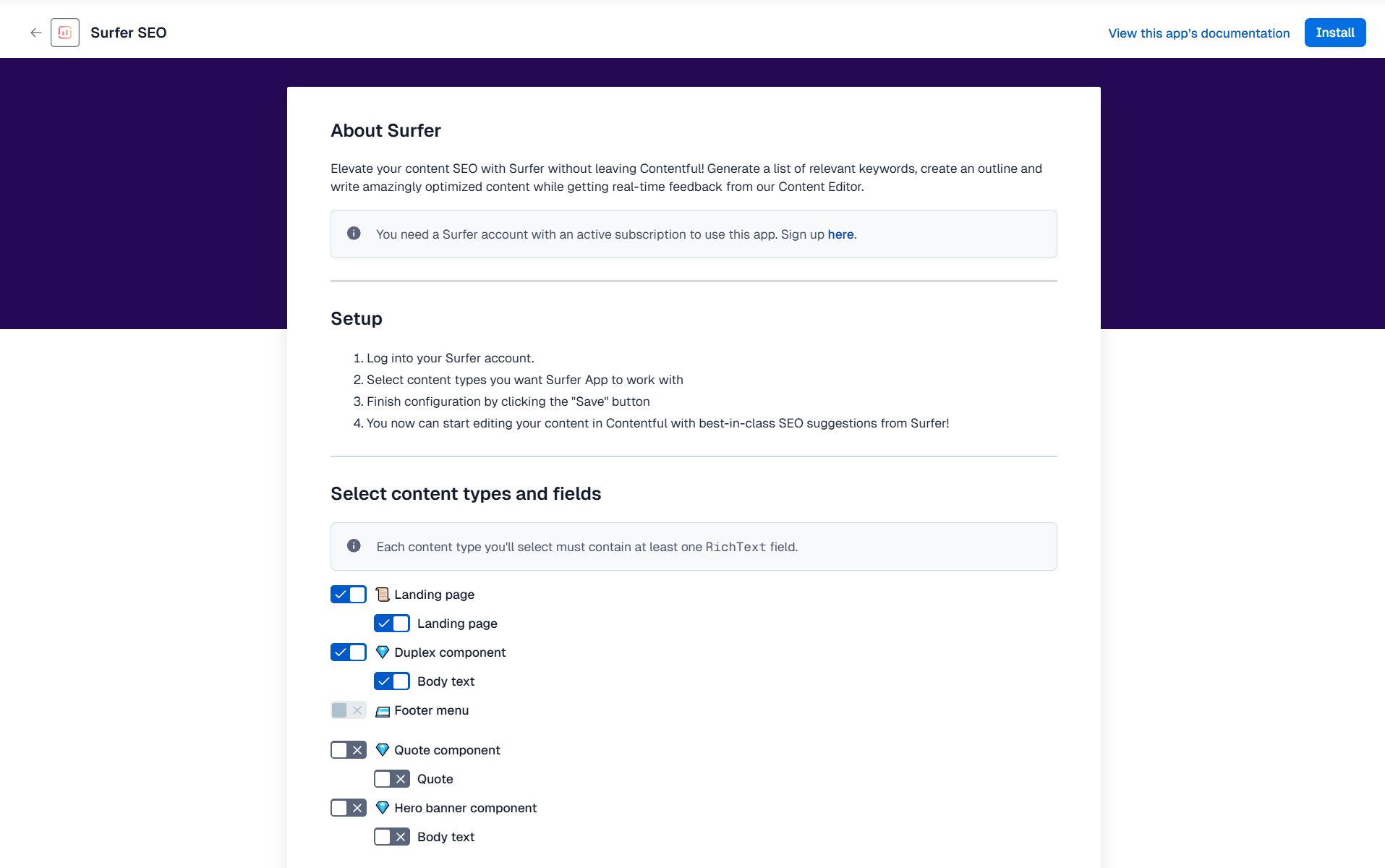
Installation runs through Contentful’s Marketplace and ends on the app’s configuration screen. There you choose the content types and fields.1
Open the Marketplace
In Contentful, go to Apps → Marketplace, or open Surfer’s
listing directly.
2
Find Surfer
Open Surfer’s listing.
3
Install
Select Install. The app’s configuration screen opens.
4
Choose the content types
Under Select content types and fields, every content type with a Rich
Text field starts switched on. Switch off the ones that should not get the
panel. A content type without a Rich Text field stays off, with the tooltip
This content type doesn't contain any RichText fields.5
Choose the fields
Under each switched-on content type, its Rich Text fields are listed. All of
them start switched on. Switch off any field the score should ignore.
Switching off the last switched-on field switches the content type off.
6
Finish the installation
Select Install in the top bar. Surfer appears in your list of installed
apps under Apps.
Add Surfer to a content type’s sidebar
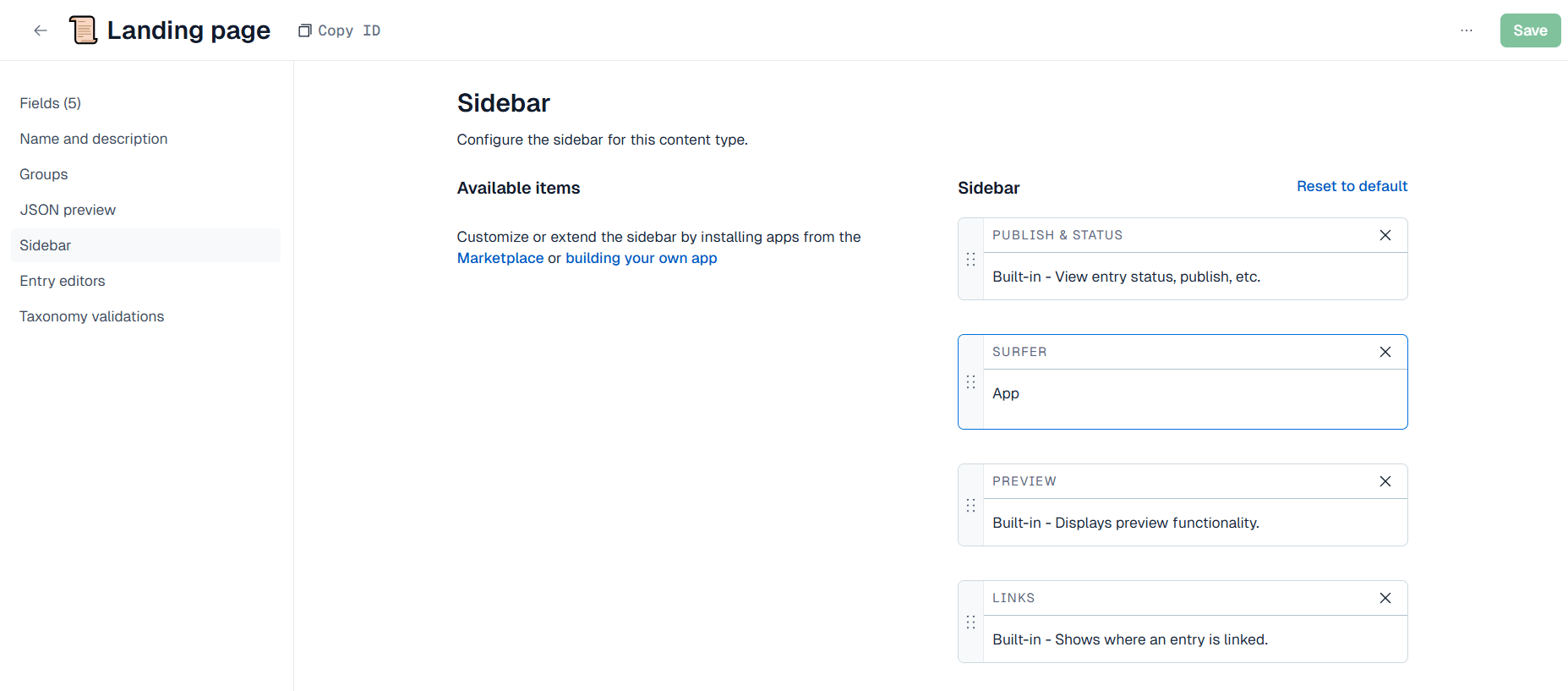
Installing the app puts Surfer in the sidebar of every content type you switched on. Add it by hand only if an entry of a switched-on content type shows no panel, for example after you rearranged that sidebar.1
Open the content type
Under Content Model, open the content type.
2
Open the sidebar settings
Open the Sidebar section.
3
Add Surfer
Select the plus sign next to Surfer in the list of available items.
4
Save
Select Save.
Write with the guidelines
Open an entry of a switched-on content type. The Surfer panel sits in the right sidebar. The Collapse button above it folds the panel away, and Expand brings it back. On an entry that has no Content Editor yet, the panel lists your Content Editors. A Content Editor whose analysis is still running cannot be picked. Linking one replaces any document it was linked to before, as The dashboard on the guidelines panel page explains. Pick a Content Editor to link it to the entry, or create a new one. Creating one spends one Content Editor credit, a credit from your plan’s balance. See Credits for the full rule. The link belongs to the entry, so everyone who opens that entry sees the same Content Editor. The score reads the Rich Text fields you switched on for that content type, together as one text. Other fields are not read, including the title. A Rich Text field added to the content type later is not read until you switch it on from Apps. Customize, the gear in the panel’s header or the entry at the top of its dots menu when the sidebar is narrow, opens the Content Editor’s settings in Surfer in a new tab. See the guidelines panel page for what the panel shows and what stays in the Surfer app.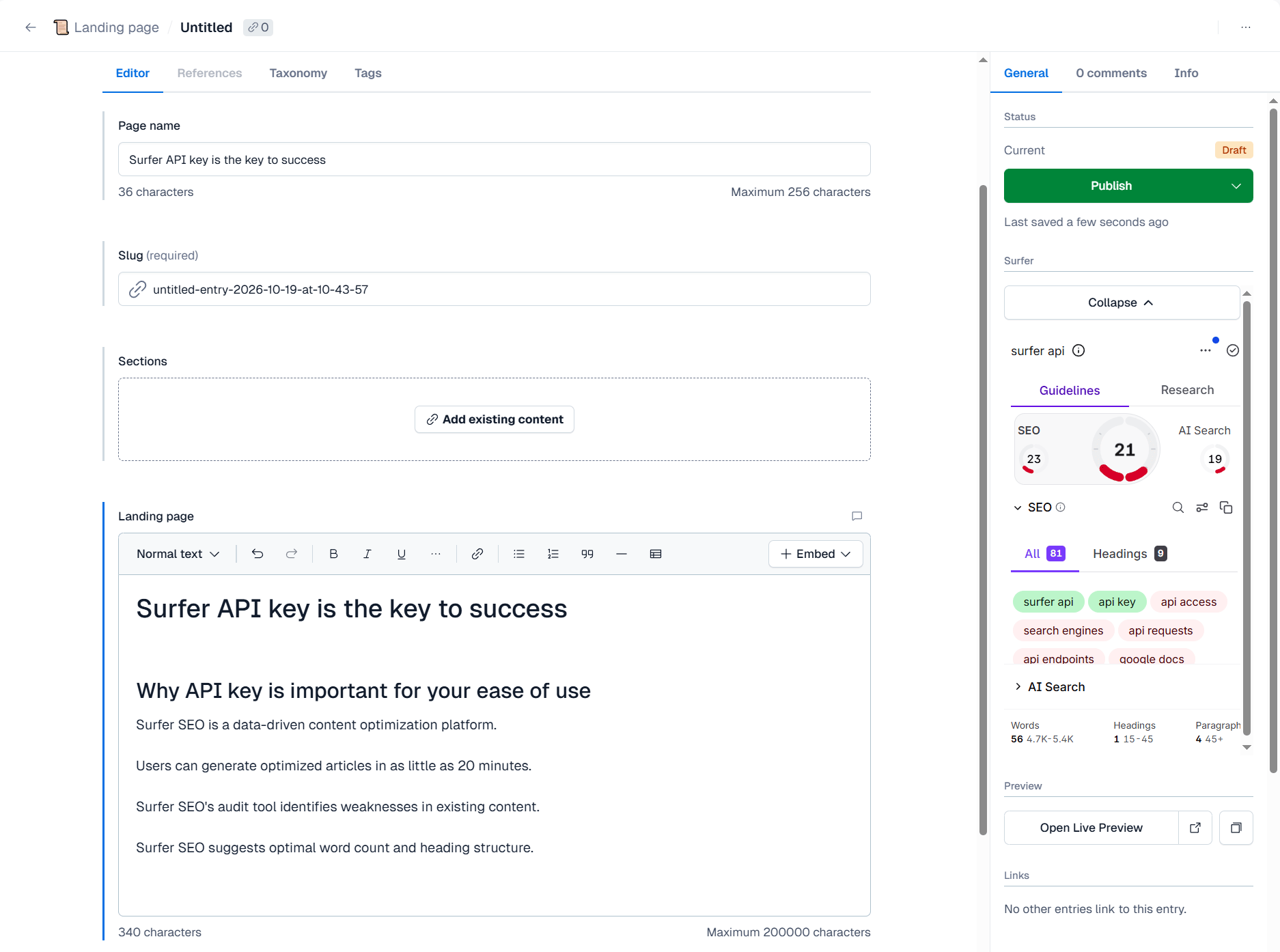
In the Surfer app
In Surfer, the linked Content Editor shows Editing happens in Contentful in place of its editor. There is no button to open the entry, because Contentful entries have no public address. Its other buttons and what disconnecting restores are on The linked Content Editor in the app.Verify it is working
The panel shows the Content Score and the guidelines for the entry, and both follow the switched-on fields as you type.- Open an entry of a switched-on content type.
- If the panel lists Content Editors, pick one.
- Type a sentence in a switched-on Rich Text field.
- Watch the word count in the structure strip at the bottom of the Guidelines tab go up.
Remove the app
Uninstalling removes the panel from every entry. The Content Editors it linked stay linked in Surfer until you disconnect them there.- In Contentful, go to Apps.
- Uninstall Surfer from your installed apps.
- In Surfer, disconnect each linked Content Editor to edit it in Surfer again.
Troubleshooting
Start in Contentful’s content model. Check that the entry’s content type has a Rich Text field and that Surfer is switched on for it.The panel asks you to sign in
The panel asks you to sign in
You are signed out of Surfer, or you are signed in and the browser blocks
Surfer’s cookies inside Contentful. Follow Sign in and
cookies for either
case. You can use different accounts for Surfer and Contentful.
The panel says the integration is not available on your plan
The panel says the integration is not available on your plan
The organization’s plan does not include the integration. See
Availability for the plans that include it. For an entry
that already has a Content Editor,
Plans on the guidelines panel page
explains what the panel still shows.
No Surfer panel appears on an entry
No Surfer panel appears on an entry
Either the content type was switched off when the app was installed, or
Surfer is missing from its sidebar.
- Open the app from Apps.
- If the content type is switched off, switch it on and select Save.
- Under Content Model, open the content type’s Sidebar section.
- If Surfer is not listed there, add Surfer.