

Availability
You need a Zapier account, API access on your Surfer plan, and an API key issued by support. Authentication lists the plans that include API access and how the key is issued.Connect Surfer in a Zap
Surfer is added like any other Zapier app: pick it as an action step, connect an account with your API key, and test the step.1
Add a Surfer action step
In the Zap editor, pick Surfer as the app of an Action step.
2
Choose the action
Under Action event, pick one of the four actions.
3
Connect a Surfer account
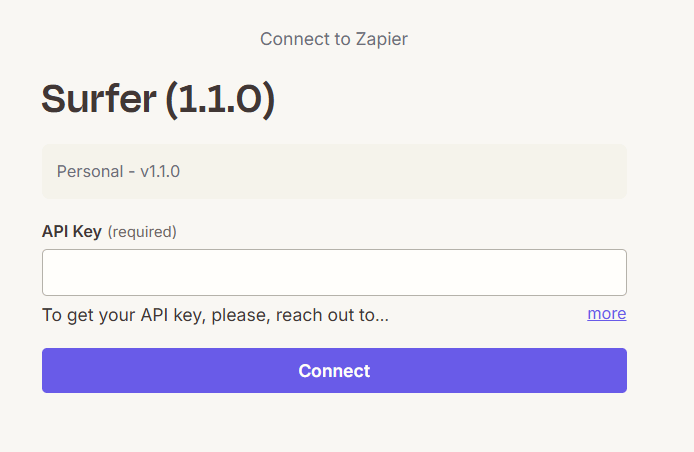
Go to Account → + Connect a new account. Surfer’s connection dialog opens in a separate window.
4
Enter the API key
- Paste your organization’s API key into API Key.
- Select Connect.
5
Fill in the action's fields
On the Configure tab, fill in the fields the action needs. Actions lists them.
6
Test the step
Surfer has no sandbox, so a test is a real run (Authentication). A create action makes a Content Editor and spends its credit (Credits and limits). On the Test tab, select Test step.
Actions
The Surfer app has four actions and no triggers. A Zap starts from another app’s trigger or from a schedule and calls Surfer from there. Two actions create and spend credits (Credits and limits). Two actions read. Their answers are only useful once Surfer has finished (Wait for Surfer to finish). The guidelines read answers an error until then. The content read answers whatever the document holds at that moment.Create Content Editor
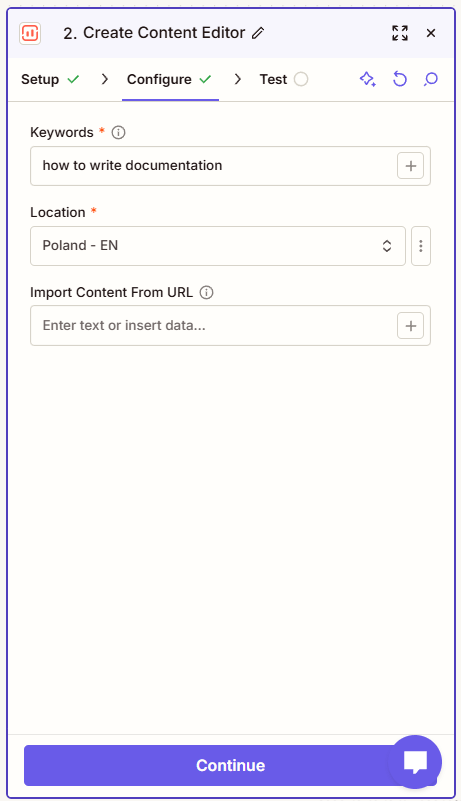
Creates a Content Editor for your keywords and starts building its guidelines.- Keywords (required): the keywords the Content Editor targets.
- Location (required): the country or region whose search results Surfer analyzes, for example United States.
- Import Content From URL (optional): the address of a page. Surfer fills the new editor’s document with that page’s content.
scheduled at first), Workspace Id, and Permalink Hash.
Create Surfer AI Article
Creates a Content Editor for your keywords and has Surfer write the article into it, in one step. No Create Content Editor step goes before it.- Keywords (required): the keywords the article targets.
- Location - Language (required): the country or region whose search results Surfer analyzes, paired with the language the article is written in.
- Skip “Review Outline” Step? is optional. While it is off, generation pauses at the outline until someone reviews it in the Surfer app. Zapier cannot approve the outline. Turn it on to let Surfer write the article without the pause.
new at first).
Get Surfer Article’s Content
Returns the Content Editor’s document as it stands, as HTML, whether or not Surfer has finished. After Create Surfer AI Article, the document is empty until Surfer has written the article. An editor created with Import Content From URL holds that page’s content from the start.- Content Editor ID is required. Use the ID field from the create step or the Content Editor’s URL in Surfer.
Get Content Editor Structural Guidelines
Returns the recommended word, character, heading, paragraph, and image counts for the Content Editor, each as a range. A range without a maximum has no upper limit. While the Content Editor is not yet finished, or after its analysis failed, the underlying API answers404 Not found. The same answer comes back for an ID that does not exist or that your key cannot reach.
- Content Editor ID is required. Use the ID field from the create step or the Content Editor’s URL in Surfer.
Wait for Surfer to finish
Both create actions return as soon as Surfer has queued the work. A read step in the same Zap runs before Surfer has finished unless you hold it back. What runs in the background describes what Surfer does after each create step returns. Three ways to wait:- Add a Delay step between the create step and the read step. About 12 minutes is usually enough, with about 2 for the Content Editor and about 10 for the article. Surfer’s official estimate for an article is 20 minutes. Peak traffic or an AI provider outage can make it take longer.
- Split the work into two Zaps. The first Zap runs the create step. A second Zap, started on a schedule, runs the read step.
- Use the API’s webhooks. They do not depend on how long Surfer takes. Set up a webhook covers registration. Point the URL at your server or a second Zap. With two Zaps, the second handles finished editors while the first runs the create step.
Credits and limits
Creating a Content Editor or an AI article through Zapier spends the same credits as in the app. The two read actions spend none. Credits lists what each create action costs on your plan. Every action counts toward the API’s request limits. A Zap that runs many Surfer steps in a burst can reach them. Rate limits and credits lists the limits and what to do when you reach them.Verify it is working
A passing test on a create step confirms that Surfer created the Content Editor during the test.-
Use the Content Editor your setup test created. If you have none, test a Create Content Editor step now.
The test spends a credit to create the editor. Its output shows the editor’s ID and State
scheduled. - In Surfer, find that Content Editor by the keywords you sent. An editor created from Zapier lands in your organization’s oldest active workspace; no action field names a workspace.
- Once the editor has finished, test a Get Content Editor Structural Guidelines step with that ID. The recommended counts come back.
Troubleshooting
Check two things first: the key the account was connected with, and whether the read step ran before Surfer finished.The connection test fails
The connection test fails
The key has a typo, was reset since you copied it, or your organization’s plan has no API access. Connect again with the current key. If the test still fails, When authentication fails covers a rejected key and a plan without API access.
A read step returns an error or an empty document right after a create step
A read step returns an error or an empty document right after a create step
The Content Editor is usually not finished yet. Add a Delay step before the read step, or move it into a later Zap (Wait for Surfer to finish).If the read step still answers the same after a long wait, check the editor’s state before you create another one, in Surfer or by polling the API (Content Editor states). Create a new editor only when the state is
failed.An error can also mean a wrong ID. The underlying API answers 404 Not found to both read actions for an ID that does not exist or that your key cannot reach.The article never finishes
The article never finishes
The article can still be writing, can be waiting for an outline review, or can have failed. Check its state in Surfer or by polling the API (AI Article states).If it is waiting for the outline review:
- Open the Content Editor in Surfer.
- Review the outline there and submit it. Generation resumes only after you do.
- For later runs, turn on Skip “Review Outline” Step? on the Create Surfer AI Article step so generation does not pause at the outline.
A create step fails with a quota or credit message
A create step fails with a quota or credit message
- Your Content Editor credits are used up, or, on Enterprise and some older plans, your AI Article credits. When an allowance is used up says where to check it.
- A Create Surfer AI Article step can also fail while Surfer’s article generation is overloaded. Run it again later.
- Any other error comes from the Surfer API. Errors explains the API’s error responses.