

Before you start
You need your own Surfer account on a plan that includes MCP. You also need a Claude account. Free accounts support one custom connector. On Team and Enterprise, an Owner must add Surfer for the organization first.Connect Surfer
If your Owner already added Surfer, select Connect on its entry under Customize → Connectors and continue with the sign-in step below.1
Open the connector dialog
Go to Customize → Connectors → Add custom connector.
2
Add the server
Enter 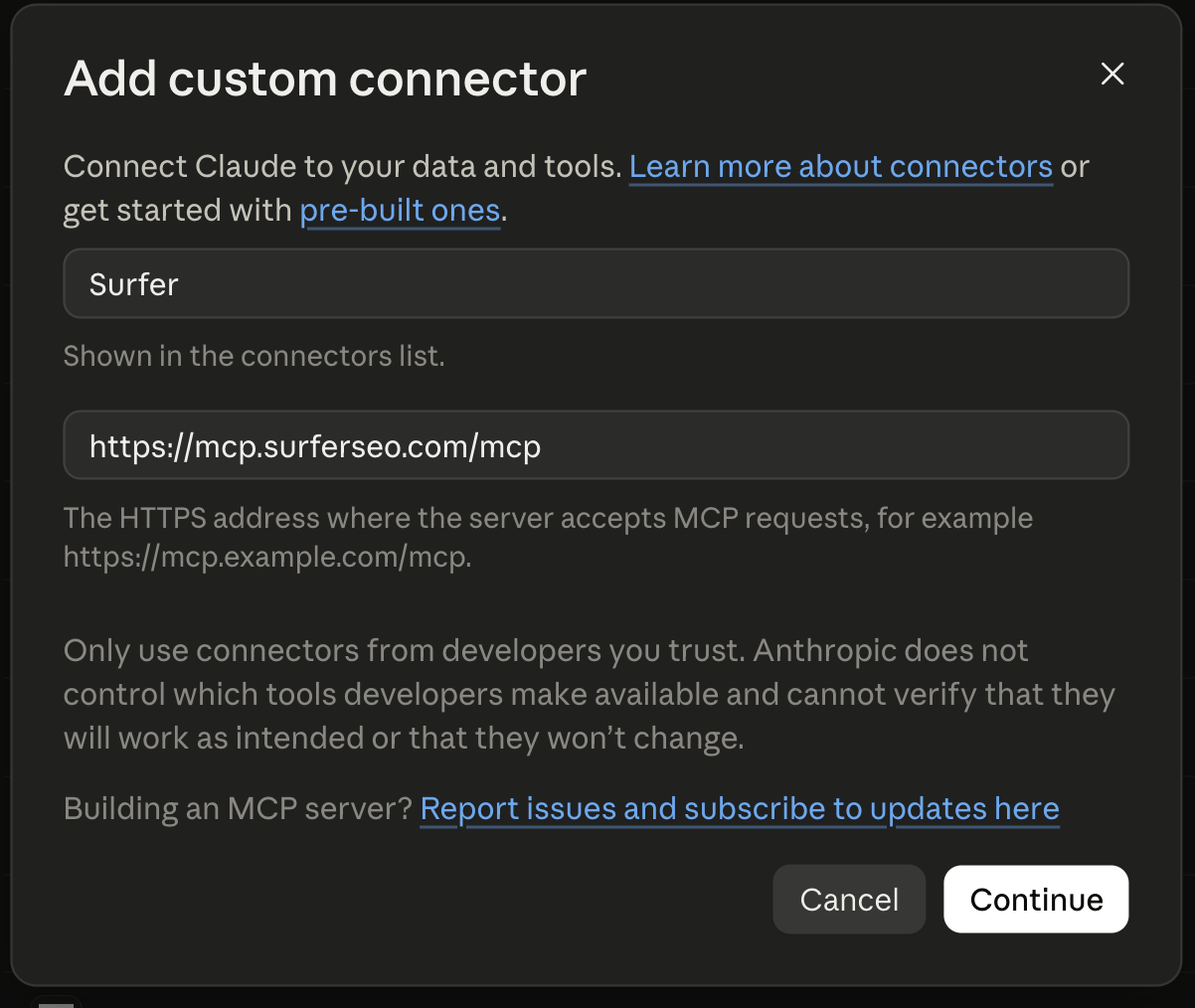
Surfer as the name and https://mcp.surferseo.com/mcp as the server URL.No client ID — register one automatically.Finish adding the connector, then select Connect if prompted. Older dialogs have an Add button instead of Continue.3
Sign in to Surfer
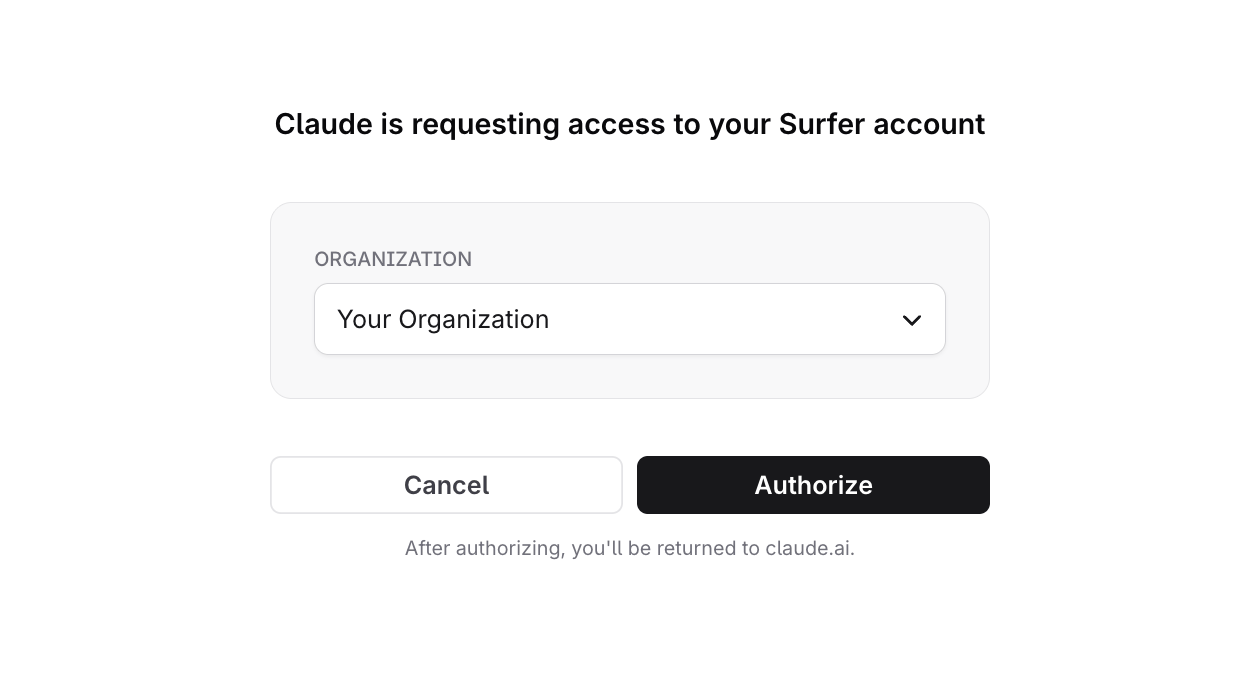
- Sign in with your Surfer account in the browser window that opens.
- Choose the organization to connect, if you belong to more than one.
- Select Authorize, then return to your client.
4
Enable Surfer in a conversation
Open a new chat and turn on Surfer under + → Connectors.
Team and Enterprise
An Owner adds Surfer once; each member connects it with their own Surfer account.- As an Owner, go to Organization settings → Connectors → Add → Custom. Choose Web if asked for the connector type.
- Add the name, URL, and authentication settings from Add the server above.