

Start from Surfer
Share in a Content Editor creates a blank Google Doc that is already linked to it, in a new tab. The app creates a new document and cannot link a doc that already exists. For an existing doc, follow Start from a Google Doc. Copy anything you already wrote in Surfer before you create the doc, because Surfer does not copy the Content Editor’s text into it. The entry appears in a Chromium browser with the extension installed. Without the extension, Share offers Get Chrome extension for Google Docs instead. Once the Content Editor is linked to a document elsewhere, the entry disappears.1
Open the Content Editor
Open the Content Editor in Surfer, in the browser profile that has the
extension.
2
Open the Share menu
Select Share.
3
Create the document
Select Create new Google Document. A blank Google Doc opens in a new
tab. Surfer links the Content Editor to it.
4
Open the panel
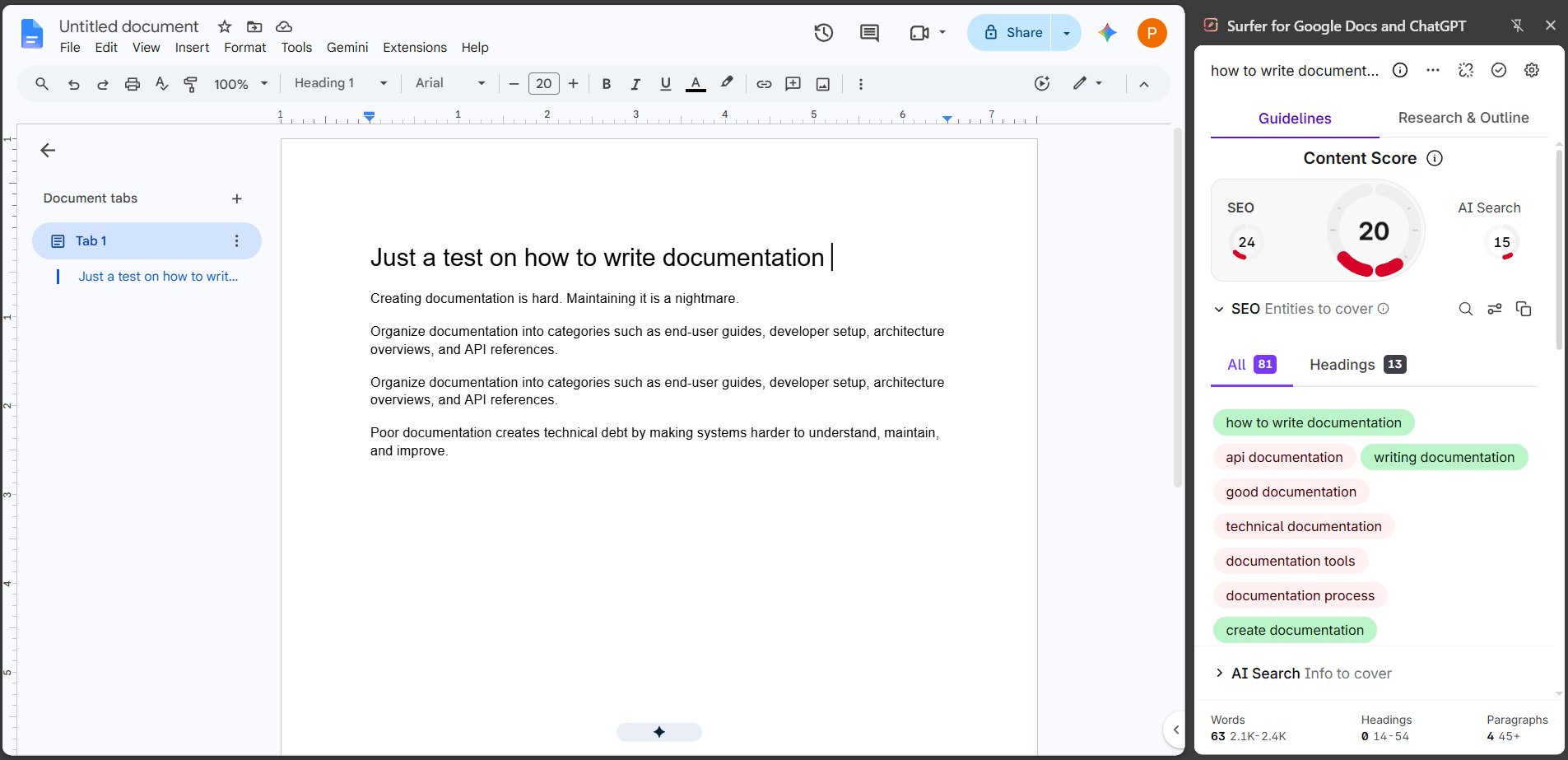
In Chrome with the side panel, select Surfer in the doc’s title bar. In
a browser without it, the panel appears inside the page by itself.
Start from a Google Doc
Open the panel from the doc, then pick a Content Editor or create one. How the panel opens depends on your browser:- Chrome with the side panel adds a Surfer button to the doc’s title bar.
- A browser without it adds no button. The extension’s popup offers LOAD SURFER instead.
- Auto load Surfer, in the same popup, opens the panel by itself only once the doc is linked. See Side panel or in-page panel.
1
Open the doc
Open the Google Doc.
2
Open the panel
In Chrome with the side panel, select Surfer in the title bar, left of
the doc’s own buttons. In a browser without it, select LOAD SURFER in
the extension’s popup.
3
Find the Content Editor
Type its keyword in Search by keyword.
4
Pick or create a Content Editor
Creating a Content Editor spends one Content Editor credit, a credit from
your plan’s balance. The full rule is under
Credits. Select the Content Editor
in the list, or create a new one.
Work with collaborators
Anyone who opens the linked doc with the extension installed sees its guidelines, signed in to Surfer or not. Share the doc the way you share any Google Doc. Surfer adds nothing to Google’s sharing. A collaborator needs the extension, and the panel opens for them as it does for you:- In Chrome with the side panel, they select Surfer in the title bar.
- In a browser without it, the panel appears by itself on the linked doc (see In-page panel).
- The panel has no Customize gear.
- The collaborator cannot disconnect the Content Editor from the doc.
- The collaborator cannot edit Notes under Research & Outline.
What the score sees
The Content Score reads the document as Google exports it, not what is on your screen.- Comments are removed before scoring. Footnotes stay.
- The score follows your typing with a short delay, listed under Where your text lives.
- Suggested edits and tables get no special treatment. The panel scores whatever Google’s export contains for them.
Side panel or in-page panel
Chrome with the side panel opens Surfer there. A browser without it gets a panel inside the page.Side panel
The panel sits in Chrome’s side panel, follows the active tab, and is available only on a Google Doc.- Surfer in the title bar opens the panel. The button hides while the panel is open.
- OPEN SIDE PANEL in the extension’s popup opens the panel too.
- Show Surfer button in Google Docs in the popup controls the title-bar button. Turned off, it removes the button.
In-page panel
Without a side panel, the extension places the panel as a column at the right edge of the doc.- Auto load Surfer in the popup opens the panel by itself on a linked doc while it is on.
- LOAD SURFER in the popup opens the panel when it did not appear by itself.
- Turn off Auto load Surfer in the popup.
- Select Reload page to hide Surfer. The page reloads without the panel.
Disconnect the doc
In Surfer, the linked Content Editor shows Editing happens in Google Docs with Open in Google Docs and Disconnect. The linked Content Editor in the app covers what stays in the app while a doc is linked and what disconnecting restores. In the doc, a narrow panel offers Disconnect from this page in its dots menu when you have rights to customize the Content Editor. It unlinks the doc and refreshes the panel. Narrow panels says when the panel is narrow.Verify it is working
The panel shows the Content Score and the guidelines for the document, and re-reads the text as you type. In Surfer, the Content Editor shows as linked.- Open the panel on the linked doc. It shows the Content Score and the guidelines for the document.
- Type a sentence in the doc. The panel re-reads the text as you type.
- In Surfer, open the Content Editor. Editing happens in Google Docs covers its text, as described under Disconnect the doc.
Troubleshooting
Use the setup page for installation and sign-in problems.- If Surfer is missing from the title bar, see Troubleshooting on the setup page.
- If the panel requests sign-in or cookie access, see Sign in and cookies.
- If the panel says your plan excludes the integration, see Availability.
- If the score stays unchanged, see Troubleshooting on the setup page.