

Availability
Google Docs needs a plan that includes the Google Docs integration. The Google Docs integration is included in the Standard, Pro, Peace of Mind, and Enterprise plans and in the trial; some older plans include it too. The check happens in the panel, for the organization selected there. In a Google Doc with no linked Content Editor, a plan without the integration showsGoogle Docs integration is not available on your plan in place of the dashboard. Plans on the guidelines panel page covers the panel’s own rules.
Which extension does what
Surfer ships two Chrome extensions. This page sets up Surfer for Google Docs. Keyword Surfer is a separate extension built around keyword research.Before you start
You need a supported browser and a Surfer account.- Chrome 102 or newer, or another Chromium browser that installs extensions from the Chrome Web Store.
- A Surfer account, signed in to the app in the same browser profile as your documents.
Install the extension
Install Surfer for Google Docs from the Chrome Web Store. Its toolbar icon becomes active only on pages the extension works on, such as a Google Doc.1
Open the listing
Open Surfer for Google Docs on the Chrome Web Store.
2
Add it to Chrome
Select Add to Chrome.
3
Confirm
Select Add extension in Chrome’s confirmation dialog.
4
Pin the icon (optional)
In Chrome’s toolbar, select Extensions → Pin next to Surfer for Google Docs. The popup is then one click away.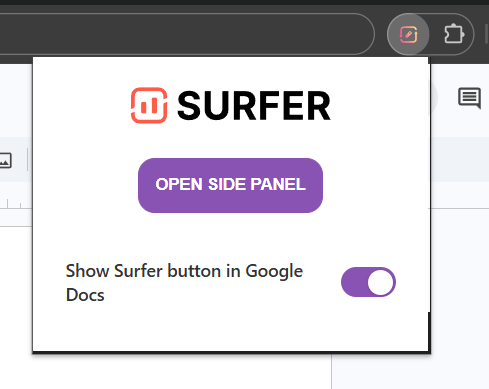
Sign in
Sign in to Surfer in the browser profile you use for your documents. The extension signs the panel in.- Open app.surferseo.com in the same browser profile as your documents.
- Sign in.
Connect Content Editor to this document in place of your Content Editors means the panel is signed out. Troubleshooting below covers the causes. The connect screen explains that screen’s controls.
Verify it is working
In Chrome with the side panel, a Surfer button in the Google Doc’s title bar confirms that the extension is running. Other Chromium browsers use the extension’s popup. In Chrome with the side panel:- Open a Google Doc you can edit.
- Select Surfer in the title bar, at the left of Google’s own buttons. The panel opens in Chrome’s side panel.
- Open a Google Doc you can edit.
- Select the extension’s icon in the toolbar.
- Select LOAD SURFER. The panel opens inside the page.
What the panel offers in Google Docs
The panel guides and scores. Editing the text, AI articles, and share links stay in the app.
The guidelines panel page covers what the panel shows in detail and what stays in the app.
Troubleshooting
These fixes cover the page you are on, the extension’s version or state, the browser profile, the plan, and the delay before the panel re-reads your text.The panel asks you to update the extension
The panel asks you to update the extension
The connect screen with
Update your Chrome extension beneath its heading means two things at once. The extension is older than 1.2.1, and the browser allows neither third-party cookies nor storage access for Surfer. The connect screen covers its other branches.- Select Go to Extensions. The Chrome Web Store listing opens.
- Restart Chrome, which updates extensions on its own.
- If the panel still asks, remove the extension with Manage extensions → Remove.
- Install it again from the listing.
- Select Refresh page in the panel.
The panel asks you to sign in although you are signed in
The panel asks you to sign in although you are signed in
The panel signs in through the extension, so the extension has to be installed and turned on in the profile and window you write in.
- Check under
chrome://extensionsthat Surfer for Google Docs is turned on. - Sign in to app.surferseo.com in the same window and profile as the document.
- Select Refresh page in the panel.
The panel says the integration is not available on your plan
The panel says the integration is not available on your plan
The message quoted under Availability means the organization selected in the panel is on a plan without the Google Docs integration.
- If you own that organization, an upgrade button appears.
- If someone else owns it, ask the owner.
- If you belong to more than one organization, the organization switcher at the top of the panel lets you pick another.
The score does not change
The score does not change
The panel reads your text again about a second after you stop typing.
- Wait a moment after typing.
- Check that the text is in the scored area. What the score sees lists what the score leaves out.
- If the score still does not follow, reload the page. The panel reads the text again.