

Availability
The connector needs API access and AI Tracker on your plan. Peace of Mind includes both; Enterprise includes API access and adds AI Tracker as an add-on. Support issues the API key; Authentication covers who has API access and how to check your plan.Before you start
Have the key, a Google account, and the project ready before you open Looker Studio.- Your organization’s API key (Authentication). The key reads every AI Tracker project in your organization, so do not share it.
- A Google account that can use Looker Studio.
- An AI Tracker project in Surfer. A project is the brand and keyword Surfer tracks for one language and region, inside one workspace (the brand or site you manage in Surfer). Create and manage projects in the Surfer app; the connector only reads them.
Add the connector
Adding the connector is Looker Studio’s usual data source flow with one extra screen for the key. Google renamed Looker Studio to Data Studio in April 2026, and Google’s own pages use that name.1
Create a data source
In Looker Studio, select Create → Data source. Google’s Add data to a report covers the other ways in, including Add data from inside a report.
2
Find the connector
Search the connector gallery for Surfer and select Surfer AI Visibility, listed under Partner Connectors.
3
Authorize the connector
- Select Authorize. A Google sign-in pop-up opens.
- Choose your Google account.
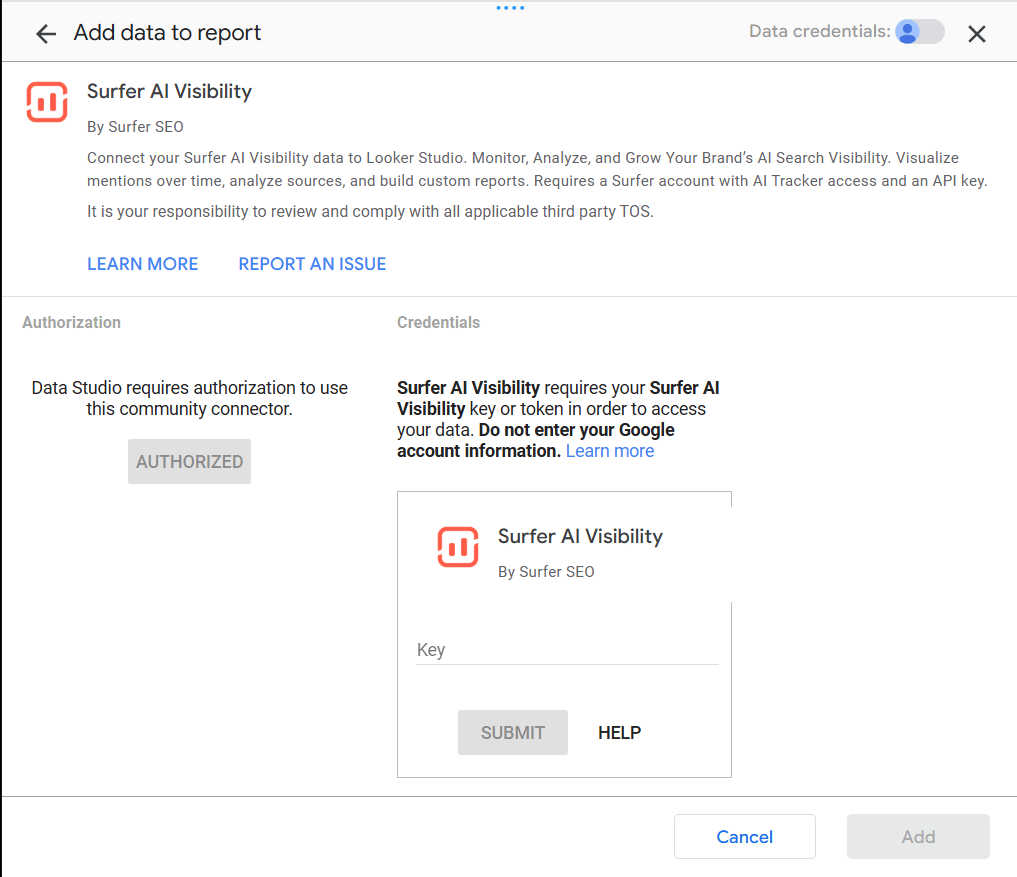
- Allow the connector to run with that account. The key screen opens.
4
Enter the API key
- Paste your API key into Key.
- Select SUBMIT.
Configure project, data type, and date range. The next section walks through it.
Configure the data source
Pick the project and the data type. The connector takes the date range from each chart or report, so this screen has no date setting.1
Pick the project
Under AI Visibility Project, select the project. Each option reads
brand - keyword | locale | ID: n. When the connector loads more than one workspace, the workspace name comes first in square brackets.If the connector cannot load the list, a Project ID field replaces it. Follow Troubleshooting.2
Pick the data type
Under Data Type, choose Brands or Sources. Brands reports how often AI answers mention each tracked brand, with its visibility score and average position. Sources reports which pages AI answers cite and how many times.One data source holds one data type, so add the connector a second time for the other. Fields lists every field of each type.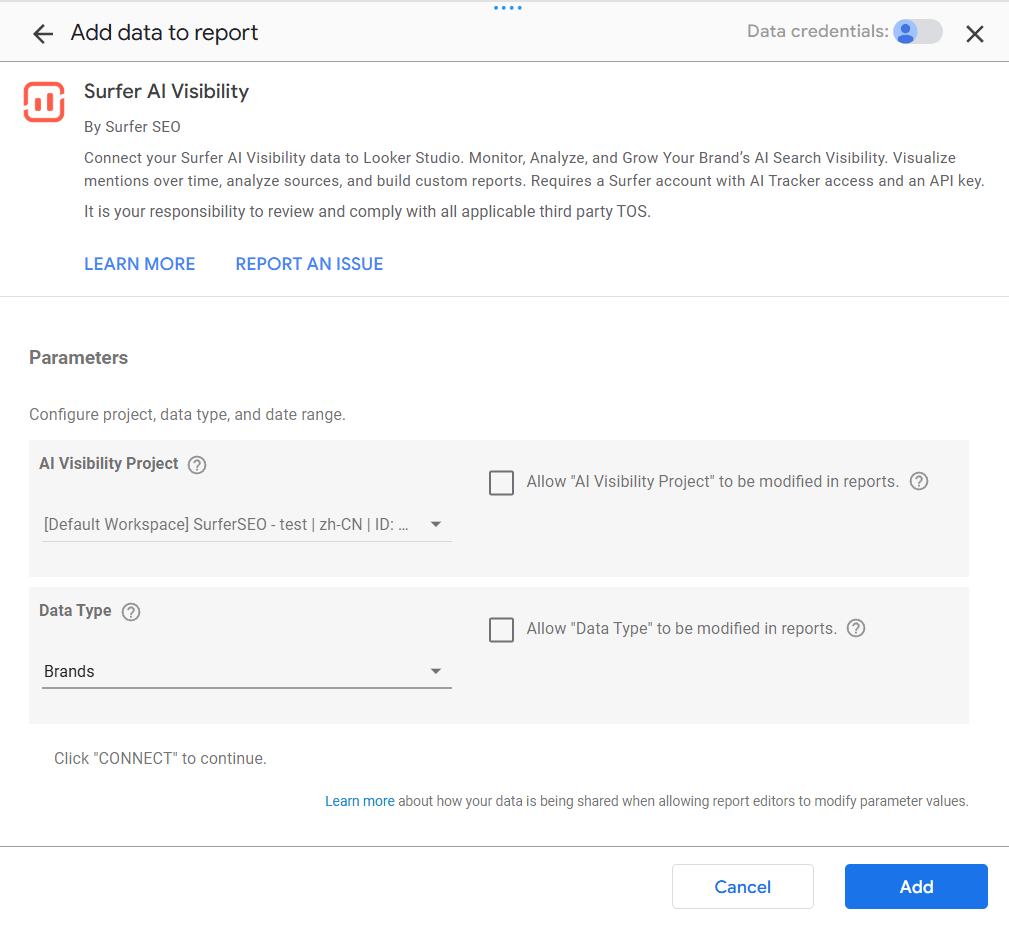
3
Connect
Select CONNECT in the upper right. Looker Studio lists the fields of the data type you chose.If you started from Add data inside a report instead:
- Select Add at the bottom right. Looker Studio shows You are about to add data to this Report.
- Select ADD TO REPORT.
4
Rename the data source
If you plan to add both types, rename the data source in the upper-left corner.
Verify it is working
A three-column table proves the connection: a day, the required dimension, and one metric.- Create a report from the data source.
- Add a table chart.
- Add Day and the pair the data type requires: Brand Name with Mention Rate for Brands, or Source URL with Times Shown for Sources.
- Give the chart a date range that covers days the project has data for.
Configuration Error. Fields states the rule.
Refresh and caching
Requests the connector sends to Surfer count against the rate limit for the same key and endpoint. A chart served from the connector’s cache sends none. Report template covers freshness, the connector’s cache and retries, and what to check when a report is stale or empty.Replace the API key
Resetting your API key stops the connector until you enter the new key. Revoke the old key in Looker Studio first. Authentication covers the reset itself.- In Looker Studio, open the Data sources tab.
- In the upper right of the connector’s card, go to More option → Revoke Access. More option is the three-dot button. Google’s Community connector authorization shows the flow.
- Open your data source again.
- Enter the new key when the connector asks for credentials.
Troubleshooting
Follow the fix named in the connector’s message.The key is rejected, or the data source asks for it again
The key is rejected, or the data source asks for it again
At the key screen, Looker Studio rejects a key the connector cannot use. A wrong key and an organization without API access or AI Tracker fail the same way, so confirm the key is current and check Availability.A data source that asks for the key again has no usable key stored for your Google account. The key was revoked or reset, the plan lost API access or AI Tracker, or Surfer did not answer when the connector checked the key. Check Availability, then follow Replace the API key.
A chart reports that a dimension is required
A chart reports that a dimension is required
A
Configuration Error that names a dimension means the chart is missing that dimension. Add it to the chart. Fields has the rule and both messages.No project to pick, or a chart says the data source is not configured
No project to pick, or a chart says the data source is not configured
An empty AI Visibility Project list means the connector found no projects in the workspaces it could load. Make sure the organization has a project in the Surfer app, then reopen the configuration.A Project ID field in place of the list means the connector could not load the projects. The possible causes:
- API access left the plan after the key was saved.
- AI Tracker left the plan after the key was saved.
- Surfer did not answer.
Configure the data source (Project, Data Type) and try again.Missing request parameters. Configure the data source (Project ID, Date Range) and try again.Project ID is required. Set it in the connector configuration.
The data source connects but charts are empty
The data source connects but charts are empty
Looker Studio shows only what AI Tracker has for that project and date range. Report template lists what to check when a report is empty or stale.
A chart says the connector encountered an unrecoverable error
A chart says the connector encountered an unrecoverable error
The connector has encountered an unrecoverable error. Please try again later, or file an issue if this error persists. means the connector could not fetch or read the report data. Some failures show at once. A rate limit or a server error shows after the connector’s retries.The causes:- Surfer had a temporary outage or answered with an error.
- The project no longer exists.
- Your key’s organization cannot see the project.
- The connector could not read Surfer’s answer.
- Wait a few minutes.
- Reload the chart.
- Check in the Surfer app that the project still exists.
- If the error persists, write to [email protected] with the project’s name and the chart’s date range.