

Not available on shared editors. Sign in to Surfer and open the Content Editor there.
Before exporting to a site that uses Elementor, turn on Elementor’s container feature. Without it the export may fail. See Troubleshooting.
Start the export
The WordPress button sits in the Publish or Export step of the Content Editor’s workflow sidebar.1
Open the Publish or Export step
In the Content Editor’s sidebar, select Publish or Export, the fifth
step of the workflow.
2
Check which site is connected
Under Export, read the line below the WordPress button.
- A green dot with Connected to: names your connected site.
- With several connected sites, Connected to: shows their count.
- A red dot with Not connected to any WordPress site means no site is connected.
3
Select WordPress
Select WordPress. The Export to WordPress dialog opens.
Choose the site and the target
Choose the destination site in the first step. You can create a new draft or update an existing post.- Pick the site under Select a domain. With one connected site, the dialog shows it under Domain and there is nothing to pick.
- Under What you want to do?, choose Create new Draft or Update existing Post.
- Select Next. Manage WordPress Integrations in the footer opens the same settings page as Manage.
- Search by title with Type Post title.
- Filter by status with the tabs All, Draft, Pending, Future, and Published. Each tab shows a count, and private posts appear under All only.
- Select the post. A post without a title reads Title has not been added yet.
- Select Next.
Fill in the post settings
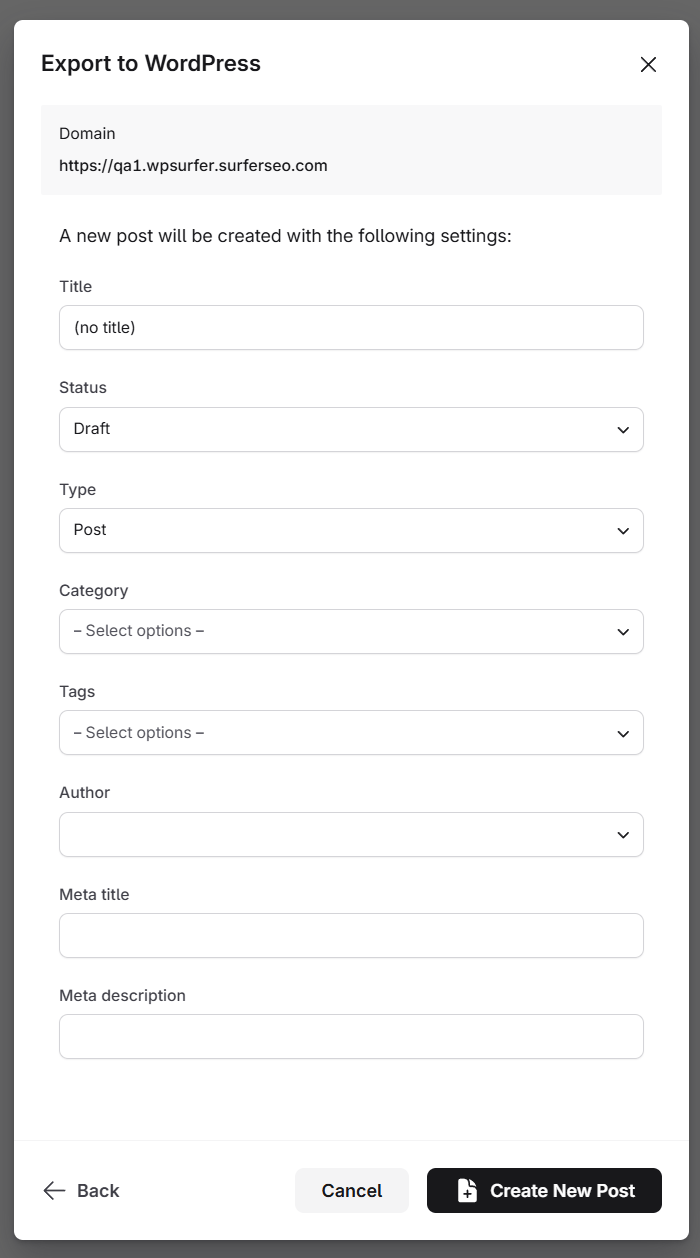
New drafts and updates use the same settings. Confirming writes every displayed value to the post.- Empty Category, Tags, and Author fields use defaults from the plugin settings, if those defaults are set.
- Changing Type reloads the custom fields preview for that type.
- The type, category, tag, and author lists stay the same when Type changes.
- The preview shows the ACF values that the export writes.
- Values are grouped by ACF field group.
- An asterisk marks each required field.
- Surfer proposes each value from your article.
- The preview is read-only.
Confirm and finish
The dialog checks the content, title, and date before exporting. The confirm button’s label identifies the action. For a new post, the step reads A new post will be created with the following settings: and the button is Create New Post, or Create New Page when Type is a page. With Future as the status, the button reads Schedule New Post. For an update, the dialog compares Last edit in Surfer with Last edit in WordPress below the settings. When the WordPress edit is the later one, it warns There is a newer version of the article in WordPress. Overwriting discards that edit. The button is Overwrite the Post, or Schedule the Post with Future as the status.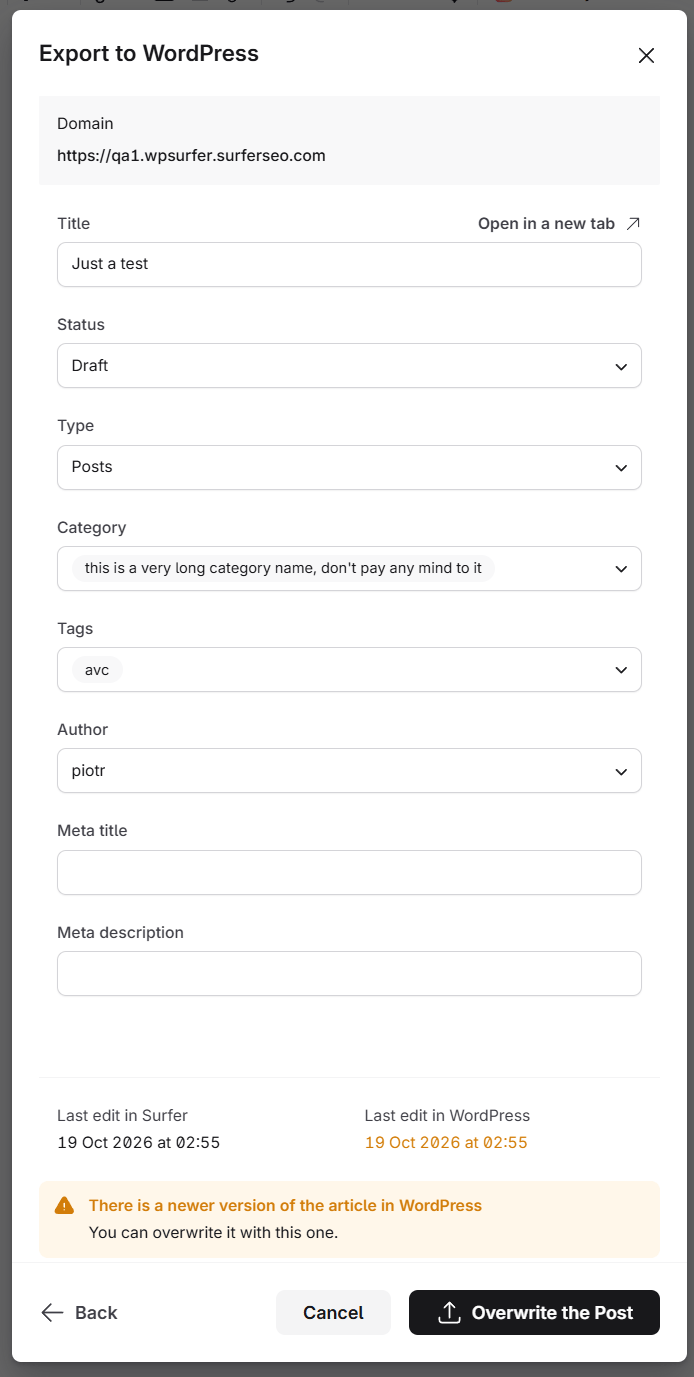
Site errors, including redirects and timeouts, appear in the same place with their codes. See Troubleshooting for fixes.
The plugin accepts up to 5 MB of content in one export. Larger content fails with
Unknown Error.
Select the confirm button to run the export. The success screen says that WordPress has been updated and synced with Surfer. Edit in WordPress opens the post in wp-admin in a new tab, and Close returns you to the Content Editor.
Verify it is working
The post is in WordPress with the settings you chose, and it is linked to the Content Editor.- On the success screen, select Edit in WordPress. The post opens in wp-admin with the exported content, and the Surfer panel carries the Content Editor’s guidelines for it.
- In wp-admin, open the list for the type you chose, Posts or Pages. The post is listed with the status you picked, and its row actions include Check in Surfer, which opens the Content Editor. Write in WordPress covers the post list.
What arrives in WordPress
The plugin rebuilds your document for the site’s editor. It copies the images into the media library.- The Title field becomes the post title, and the document’s first H1 leaves the body. Classic Editor removes every H1.
- Headings, paragraphs, lists, quotes, code blocks, and separators become the matching blocks in Gutenberg (the block editor) and widgets in Elementor. Classic Editor receives them as HTML.
- Links keep their addresses. In Gutenberg and Classic Editor each link gets the
relandtargetset in the plugin’s link settings, with separate values for internal and external links. Elementor keeps links as written. - Tables become a table block in Gutenberg and an HTML widget in Elementor. Classic Editor receives the table as HTML.
- Meta title and meta description go to the SEO plugin selected by the plugin settings. With no supported SEO plugin active, the plugin keeps both values for its own use, prefilling the next export of that post and sending them to Surfer with its text. Nothing prints them on the page.
- The content is built for the editor the plugin detects, Gutenberg, Classic Editor, or Elementor, unless the plugin settings name one. The same settings choose the templates an Elementor post gets.
Images
The plugin copies each image into the media library. The post points to the copy.- Each filename comes from the last part of the image’s address in Surfer.
- The plugin adds an extension when the address has none.
- The plugin keeps the alt text.
- An image Surfer generated has no filename of yours to keep, so it arrives under a generated name.
- With eight or fewer images, the plugin downloads them during the export.
- With more than eight images, the export finishes first and the site downloads the images in the background.
- Background processing downloads three images at a time and replaces each link as its copy lands.
- Image Processing Mode in the plugin settings forces either behavior.
- An image the site cannot fetch is replaced with the plugin’s placeholder image, in the background mode after three attempts.
- Exporting the document again reuses the images already in the media library and refreshes the links in the post.
Whether an image keeps its own filename depends on how it reached the Content Editor:
- Surfer stores images you upload from your computer under generated names. You can upload them by file picker, drag and drop, or pasting a copied image file. They arrive in WordPress under those names.
- An image Surfer imports from a page’s URL also arrives in WordPress under a generated name.
- An image you copy or drag from a page where it is already hosted keeps its address. It keeps its name.
- Images in content sent from WordPress to Surfer keep their names too.
Update a post you exported before
The export links the Content Editor to the post, and running it again with Update existing Post overwrites that post.- The Surfer panel in the WordPress editor shows the Content Editor’s guidelines on the exported post.
- Surfer records the one post each Content Editor last synced with. Exporting the Content Editor to a different post moves that record.
- The earlier post stays linked in WordPress. While two posts on the site are linked to one Content Editor, neither can send its text to Surfer. Unlink the earlier post.
- The dialog does not preselect the linked post. Choose Update existing Post and pick the post from the list.
- Overwriting replaces the post’s title, body, status, type, categories, tags, author, meta title and description, and custom fields with the values shown in the dialog. Edits made in WordPress since the last export are lost. The newer-version warning in the confirmation step is about those edits.
- A published post keeps its original publication date. Publication date applies only to a Future status, and only when the date is in the future.
Troubleshooting
Every symptom and its fix lives on the troubleshooting page. These are the ones an export runs into.- The status line reads Not connected to any WordPress site although you connected the site.
- The post picker shows Connection issue instead of the list.
- The settings warn that you do not have access to advanced posting options, and the lists stay empty.
- The custom fields preview fails to load.
- The export fails with Unknown Error.
- Images are missing, or still point to Surfer, after the export.
- After an export to a different post, WordPress says the Content Editor is already connected with another post.