

Where the Surfer panel appears
The Surfer panel sits in the post editor for every public post type except attachments, revisions, and menu items. Where it sits and what it looks like depend on the editor: Gutenberg (the block editor), the Classic Editor, or Elementor.
In Elementor, the panel re-reads the page on a timer, so the score trails your typing. Where your text lives gives the delay for each editor.
A plugin setting hides the panel in Elementor. The setup page explains this setting and the setting that chooses your editor.
Optimize a post with Surfer
Optimize with Surfer attaches the post to a new Content Editor or to one you already have. Creating a Content Editor spends one Content Editor credit. See Credits.1
Open the post
Open the post or page in its editor.
2
Open the Surfer panel
Open the Surfer sidebar in Gutenberg, the Optimize box in Classic Editor, or the Surfer panel in Elementor.
3
Start the dialog
Select Optimize with Surfer. The dialog shows your Surfer organization. It asks What do you want to do?
4
Choose new or existing
Pick Create new Content Editor or Overwrite existing Content Editor.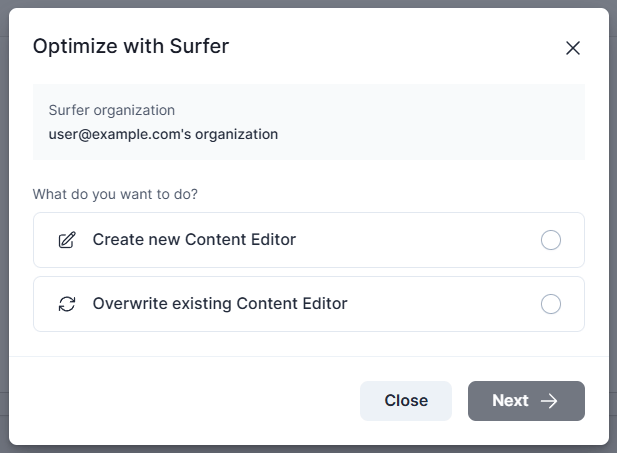
5
Continue
Select Next.
Create a new Content Editor
The form has three fields. Above them, Monthly Content Editor limit: shows the credits you have left. With no credits left, Create CE for 1 credit can stay enabled, and the request then fails after you submit the form. Create the Content Editor in Surfer instead, and attach the post with Overwrite existing Content Editor. Troubleshooting quotes the message.- In Keyword(s), enter the keywords the Content Editor is built around. Separate several with commas, up to 20.
- In Location / Languages, select the country whose search results Surfer analyzes.
- In Workspace, choose the brand or site in Surfer that the Content Editor belongs to. With one workspace, the field fills itself.
- Select Create CE for 1 credit. Surfer creates the Content Editor from the post’s current text and its meta title and description.
- The panel shows
Just a few seconds. The guidelines replace it once the analysis is done. - In the dialog, Continue in Surfer reads Scrape in progress… until then.
- Back to work closes the dialog.
Overwrite an existing Content Editor
Overwriting replaces the text of a Content Editor you already have with the post’s text. A WordPress icon next to a Content Editor in the list means it is linked to a WordPress post. If that post is on this site, unlink it there first. The plugin refuses to overwrite a Content Editor that another post on the site is linked to. Troubleshooting quotes the message.- Pick the Workspace the Content Editor lives in.
- Type in Search by keyword.
- Select the Content Editor from the list.
- Select Next.
- Check the confirmation: the Content Editor’s keywords, location, title, tags, and its last edit dates in Surfer and in WordPress. Folder appears when the Content Editor is in one.
- Check for the warning There is the newer version of the article in Surfer. It means the Content Editor changed after the post did, and overwriting discards those edits in Surfer.
- Select Overwrite the CE.
Verify it is working
The post is attached when the Surfer panel shows a score and the post list links the post to Surfer.- In the editor, check that the panel shows the Content Editor’s Content Score. The Export button appears below the guidelines.
- In the post list, the links under the post’s title include Check in Surfer. With Search Console connected and data gathered, the button in the Surfer column reads Edit in Surfer.
Write with the guidelines
The Surfer panel shows the Content Editor’s guidelines, and the score follows what you type. In every editor, the Surfer panel embeds the same guidelines panel as Google Docs and Contentful. It uses the narrow layout. That page covers what the panel shows and what stays in the Surfer app. Two buttons sit below the panel, Export and Disconnect.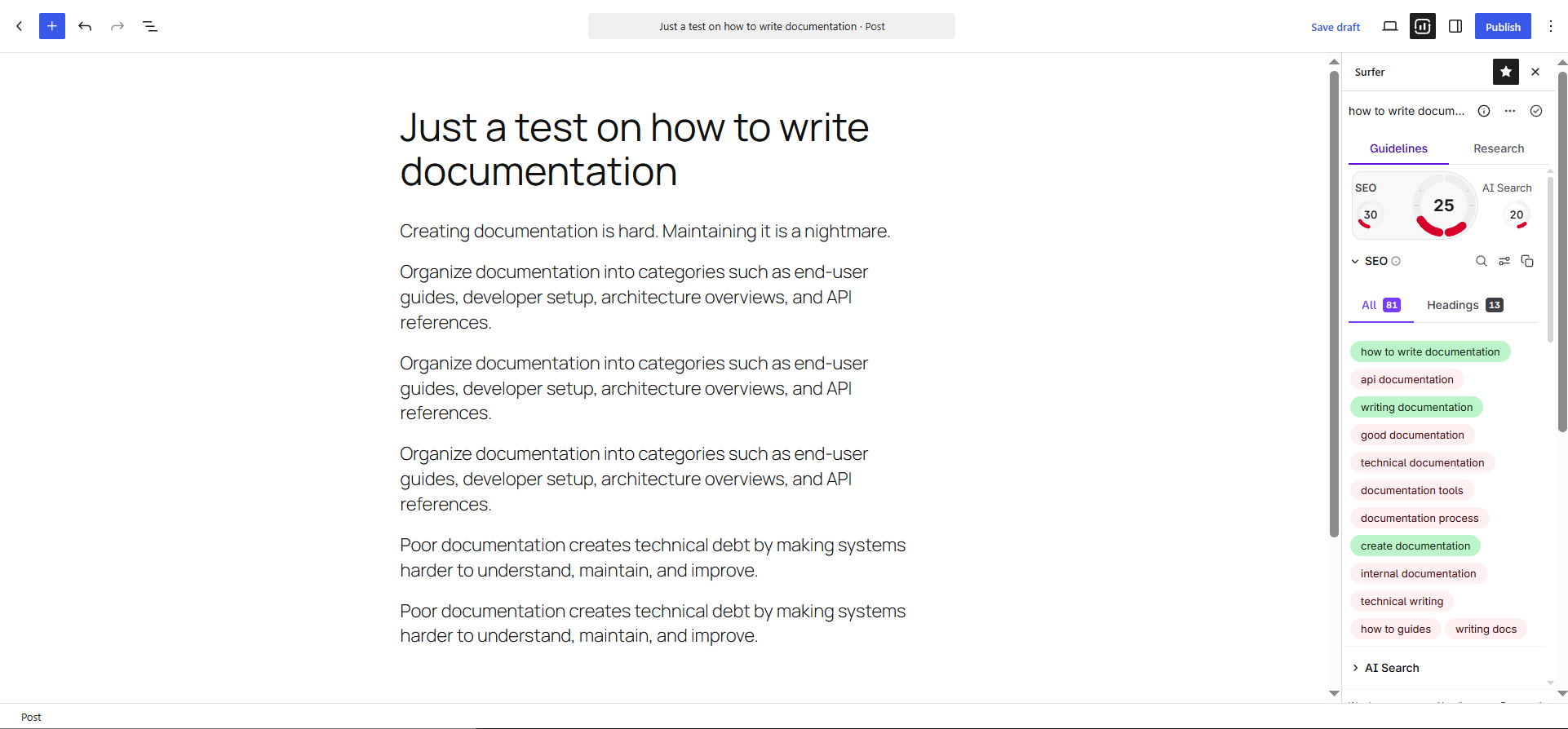
Send the post to Surfer
Export sends the post’s current text to its Content Editor and replaces what the Content Editor held.- Select Export, the button with the tooltip Export to Surfer. The Export to Surfer dialog shows the Content Editor’s keywords and title, its last edit dates in Surfer and in WordPress, and the last export date.
- Check for the warning There is the newer version of the article in Surfer. It means the Content Editor changed after the post did, and exporting discards those edits.
- Select Overwrite the CE.
Your Content Editor has been updated and synced with WordPress!. Continue in Surfer opens the Content Editor, and Back to work lets you keep writing. Exporting overwrites the Content Editor, so it spends no credit (Credits).
To send text the other way, from Surfer into the post, follow Export from Surfer.
Unlink a post
Disconnect removes the link between the post and its Content Editor. Both keep their text.- Select Disconnect, below Export.
- In Disconnect from Surfer, check the Content Editor’s Keyword(s) and Location. Open in a new tab opens the Content Editor.
- Select Disconnect, or Cancel to keep the link.
The Surfer column in the post list
The post list includes a Surfer column. Linked posts and pages also have a Check in Surfer row action. This action opens their Content Editor. Before Search Console is connected, the column holds an Add GSC link to the plugin’s settings page. Once it is, each cell shows one of three states:- A published post with data: its position, clicks, and impressions, and a button. Edit in Surfer opens the Content Editor of a linked post. Optimize with Surfer opens the same dialog as the panel for an unlinked one.
- An unpublished post:
Publish a post to see data from GSC. - A published post without data yet:
Relax while we're gathering your data.
Keyword research without an account
The Keyword Research panel works as soon as the plugin is installed, before the site is connected to Surfer.- Enter a keyword in Keyword(s).
- Select the country in Location / Languages. The picker shows United States first.
- Select Generate Keywords.
Troubleshooting
Every symptom and its fix is on the troubleshooting page. These are the ones that start in the editor.- The dialog reports that you have no credits.
- The dialog says there are too many keywords.
- Overwriting or exporting says the Content Editor is already connected with another post.
- The panel reports that the Content Editor failed or that the post needs attention.
- The Keyword Research panel has no results for a keyword.
- The Surfer panel does not appear in Elementor.
- The Content Score does not update as you type.