

- The post editor shows Surfer’s guidelines beside your post.
- Articles move between Surfer and WordPress in either direction.
- wp-admin gains a weekly performance report.
Availability
Installing the plugin is free. Its keyword research module works without a Surfer account. The features that talk to Surfer need a plan that includes the WordPress integration:- The Surfer panel in the post editor. It shows the guidelines and Content Score of a Content Editor, the document Surfer builds around your target keywords.
- The transfers between a post and a Content Editor, in either direction.
- The performance report.
Wordpress integration is not available on your plan, with an Upgrade plan to get access button instead of the site list. The connect pop-up reads No access to WordPress integration when the account you sign in with is on such a plan.
Before you start
The plugin needs a current WordPress, an administrator, and pretty permalinks:- WordPress 6.0 or newer.
- PHP 7.4 or newer.
- An administrator account. The Surfer menu and the plugin’s settings page are limited to administrators.
- Pretty permalinks: under Settings → Permalinks, any structure other than Plain. Surfer reaches the plugin through the site’s REST API address, which WordPress serves only with pretty permalinks.
Install the plugin
Follow the steps below to install from the WordPress plugin directory. To use the ZIP file instead:- Go to Plugins → Add Plugin.
- Select Upload Plugin.
- Choose the plugin ZIP from Surfer.
1
Open the plugin directory
In wp-admin, go to Plugins → Add Plugin.
2
Find the plugin
Search for
Surfer. The plugin is listed as Surfer – WordPress Plugin.3
Install
Select Install Now.
4
Activate
Select Activate.
5
Find the Surfer menu
Select Surfer in the wp-admin sidebar. The plugin’s settings page opens
with the heading Surfer: Settings. The Settings link under the
plugin on the Plugins screen also opens this page.
- On the plugin’s settings page, under Surfer account, select Disconnect.
- Connect the site again, following Connect the site to Surfer.
Connect the site to Surfer
The sign-in opens in a new browser window, so allow pop-ups for your wp-admin address before you start. Connecting starts on the plugin’s settings page, continues in a Surfer pop-up where you pick the organization, and ends back in wp-admin.1
Open the plugin settings
In wp-admin, select Surfer in the sidebar.
2
Start the sign-in
Under Surfer account, select Log in and integrate with Surfer. A pop-up opens app.surferseo.com.
3
Sign in to Surfer
Sign in with your Surfer account if the pop-up asks for it.
4
Choose the organization
Select the organization you want to connect the site to. The pop-up lists your organizations below 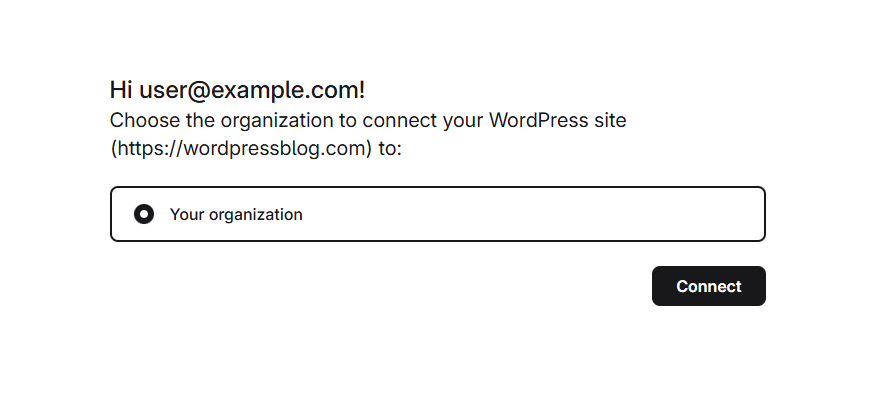
Hi <your email>!.This step picks an organization. A workspace, the brand or site you manage inside the organization, is chosen later in the post editor, once per Content Editor.5
Connect
Select Connect. There is no success screen. The pop-up moves to Surfer’s WordPress Integration page, with the site listed under Accounts connected.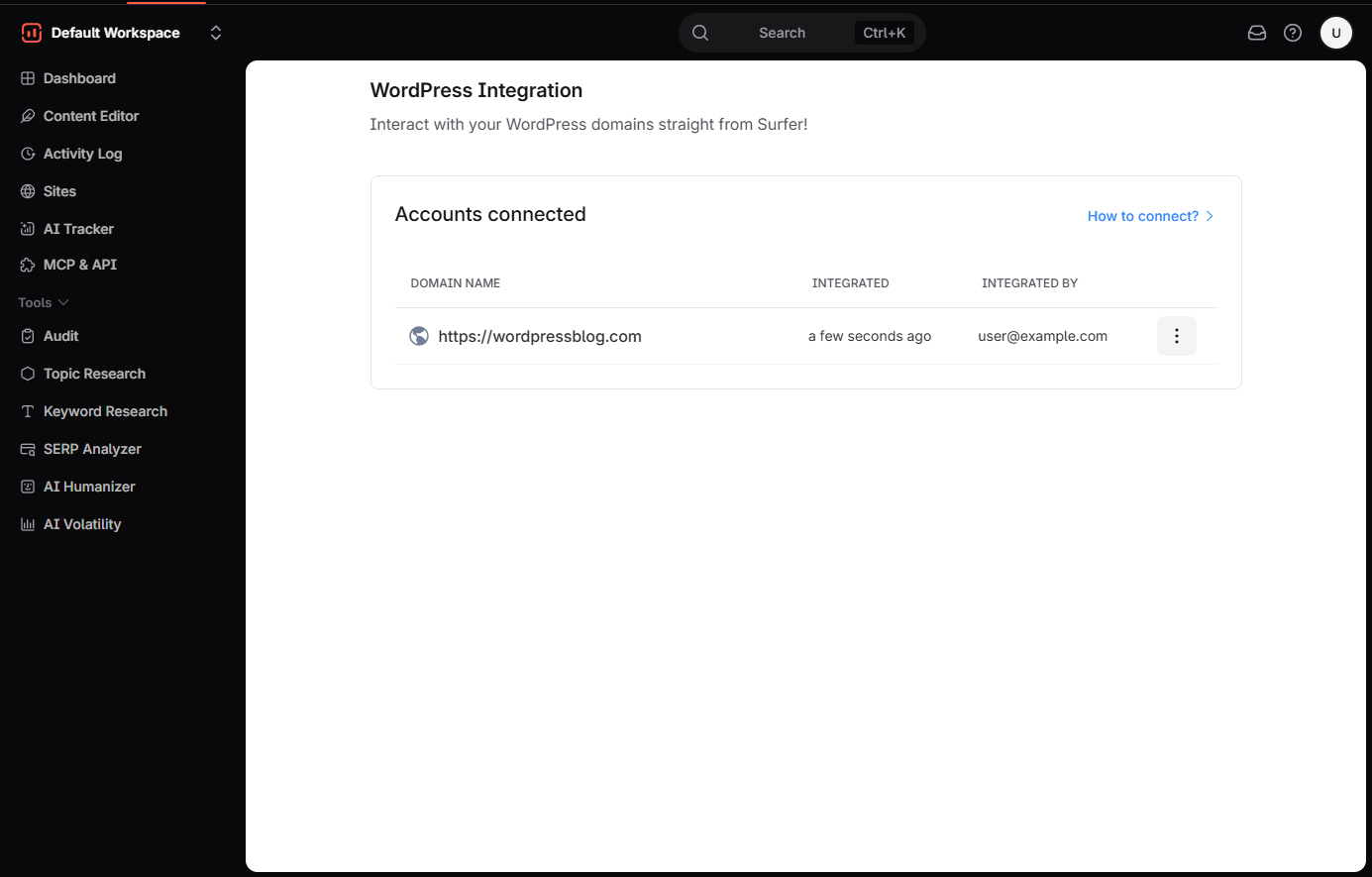
6
Return to wp-admin
Close the pop-up. The Surfer account box on the plugin’s settings page reads Connected. The organization name and the email you signed in with follow it.The page checks every five seconds. It updates without a reload.
Verify it is working
The site is listed in Surfer, and the post editor gains the Surfer panel.- In Surfer, go to Settings → Integrations → WordPress. The site appears with Domain name, Integrated (how long ago), and Integrated by (who connected it).
- In wp-admin, open any post. In Gutenberg, the Surfer sidebar shows Optimize with Surfer and the Keyword Research panel. See Write in WordPress for the panel’s location in other editors.
Plugin settings
The settings under the connection box control how exported articles appear in WordPress. They appear once your site is connected. Select Save changes at the bottom of the page to apply them.
The settings offer these choices.
- Default Content Parser: Auto Detection (Default), Classic Editor, Gutenberg, or Elementor. Auto detection picks the Classic Editor when the Classic Editor or Disable Gutenberg plugin is active, Elementor when Elementor is active, and Gutenberg otherwise.
- Default SEO Plugin: Auto Detection (Default), All in One SEO, Rank Math, or Yoast SEO. Auto detection picks the active one, Yoast SEO first, then All in One SEO, then Rank Math.
- Image Processing Mode: Synchronous (immediate), Asynchronous (background), or Auto (async for 8+ images). The background mode avoids timeouts but shows images with a delay; Export from Surfer explains when the automatic mode switches to it.
- Internal Links Rel and External Links Rel: any combination of
noopener,noreferrer,nofollow, anddofollow. - Internal Links Target and External Link Target:
_self,_blank,_parent, or_top.
Sites, organizations, and workspaces
A site connects to one organization at a time, and an organization can connect several sites.- The plugin holds one connection. To move the site to another organization, use Replace with another Surfer account on the settings page, described under Disconnect.
- Every site connected to the organization is listed under Settings → Integrations → WordPress.
- The connection is shared by the organization’s members.
- Connecting the same site to the same organization again keeps one entry in that list.
- Workspaces are not part of the connection. You choose one in the Workspace field each time you create a Content Editor from a post. Write in WordPress covers that dialog.
Disconnect
Disconnect from either side. Disconnecting from both is the surest way. Deleting the plugin on its own leaves the site connected. To disconnect from WordPress:- Open the plugin’s settings page, Surfer in wp-admin.
- Under Surfer account, select Disconnect.
- Go to Settings → Integrations → WordPress.
- Open the menu at the end of the site’s row.
- Select Disconnect account.
Troubleshooting
Each of these symptoms has its cause and fix on the Troubleshooting page.- The pop-up does not open when you select Log in and integrate with Surfer.
- The connect page shows an error above the organization list after you select Connect.
- wp-admin shows a notice that Wordfence is blocking Surfer.